Sharing notes from my ongoing learning journey — what I build, break and understand along the way.
My SSH Launcher – Python & Qt Based GUI for Server Management and Automation

SSH Launcher: My Python + Qt Project for Managing and Automating Linux Servers
I’ve developed my own SSH connection manager and remote server control tool called SSH Launcher.
It’s written in Python, and the interface is built with PySide6 (Qt).
The main idea behind it was simple — I wanted to manage multiple Linux servers from a graphical interface instead of constantly typing SSH commands in a terminal.
What It Does
With this app, I can:
- Save multiple server profiles,
- Open an SSH connection to any of them with a single click,
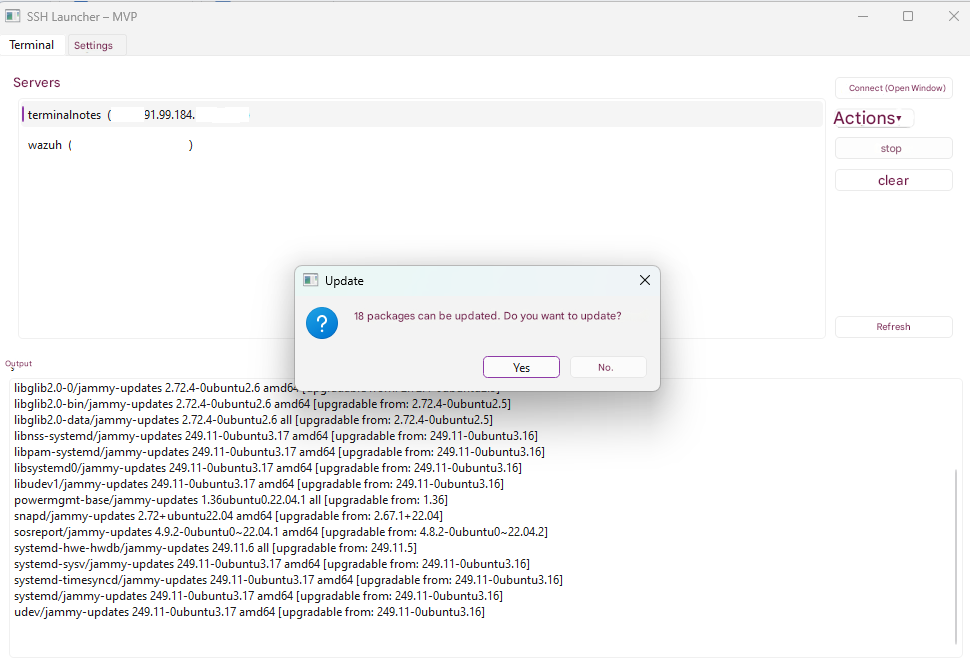
- Or run predefined system commands headlessly (without opening a terminal) and view the live output directly inside the app.
So it works both as an SSH launcher and as a lightweight server management panel.
Structure & Components
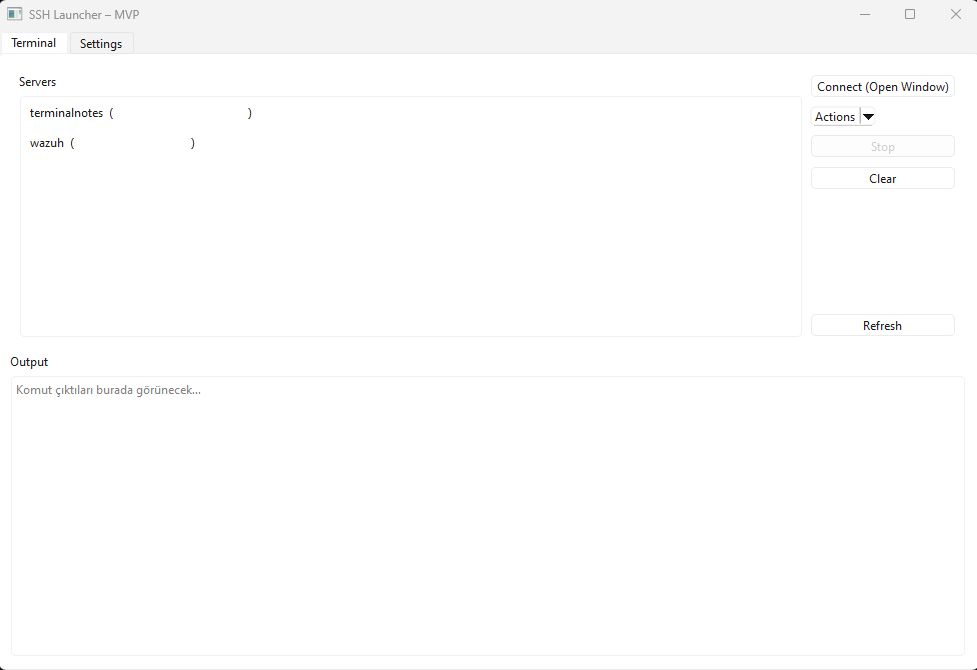
The interface has two main tabs:
Terminal Tab
- On the left, there’s a list of all my saved servers.
- On the right, I have buttons like Connect, Refresh, and an Actions menu.
- When I hit Connect, it opens a terminal window using the selected terminal profile (for example, WSL, PowerShell, Windows Terminal, or CMD).
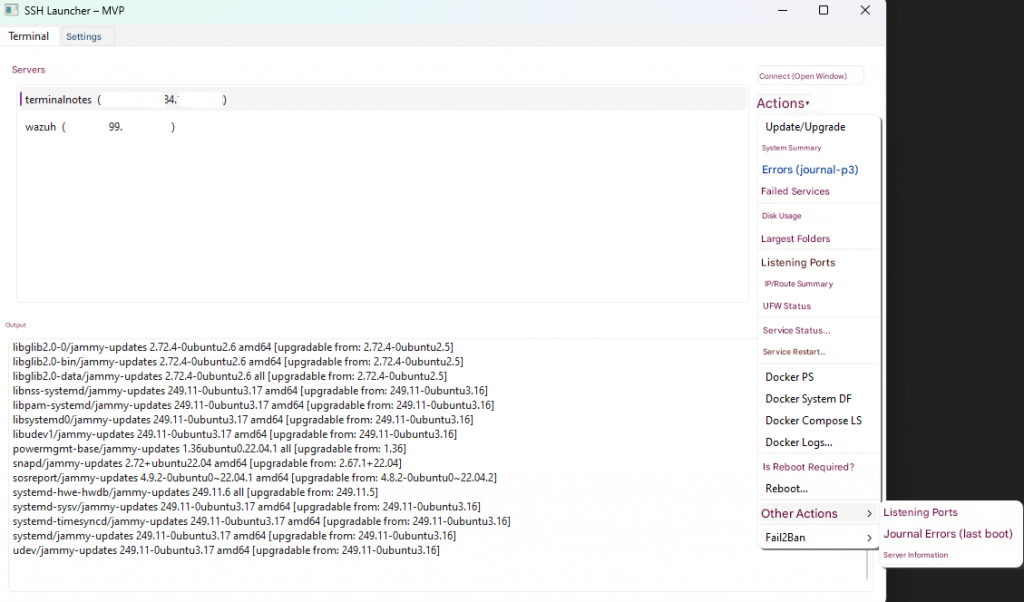
- The Actions dropdown contains a variety of predefined server commands.
Some of these built-in actions include:
- System update:
apt update && apt upgrade - Disk usage:
df -h - Top largest directories:
du -xh / | sort -h | tail -n 20 - Service management: view or restart
systemctlservices - Docker: list containers, view stats, logs, etc.
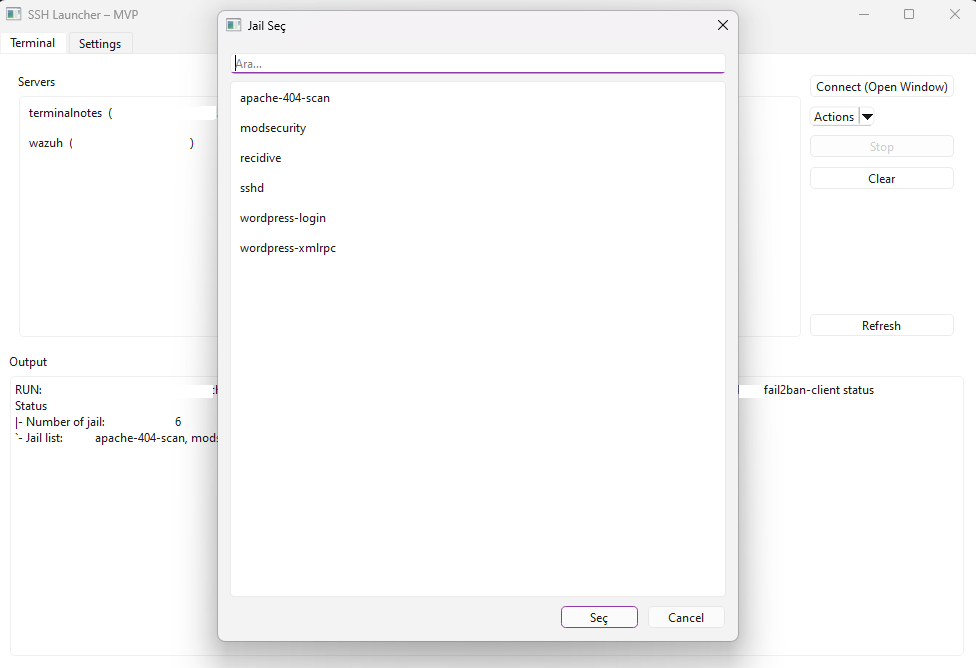
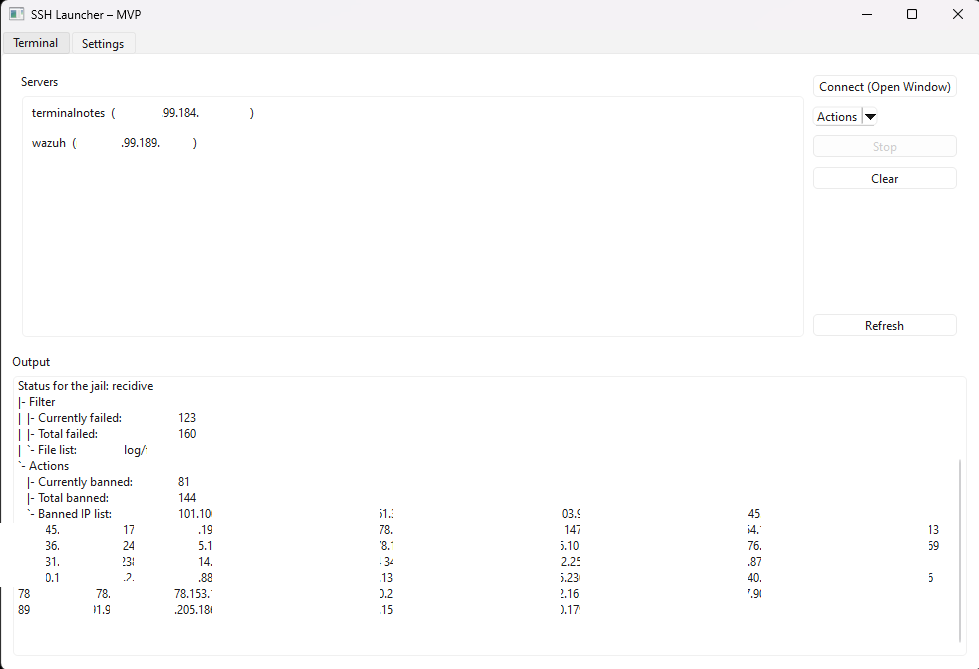
- Fail2Ban: check jail status, ban/unban IPs
- Firewall (UFW) status
- Network info & listening ports
- Reboot check or reboot system
Each command runs automatically over SSH, and the live output appears in a text console at the bottom of the window.
There are also Stop (Esc) and Clear (Ctrl+L) shortcuts.
If a critical command is running (like apt upgrade or reboot), the app asks for confirmation before interrupting it.
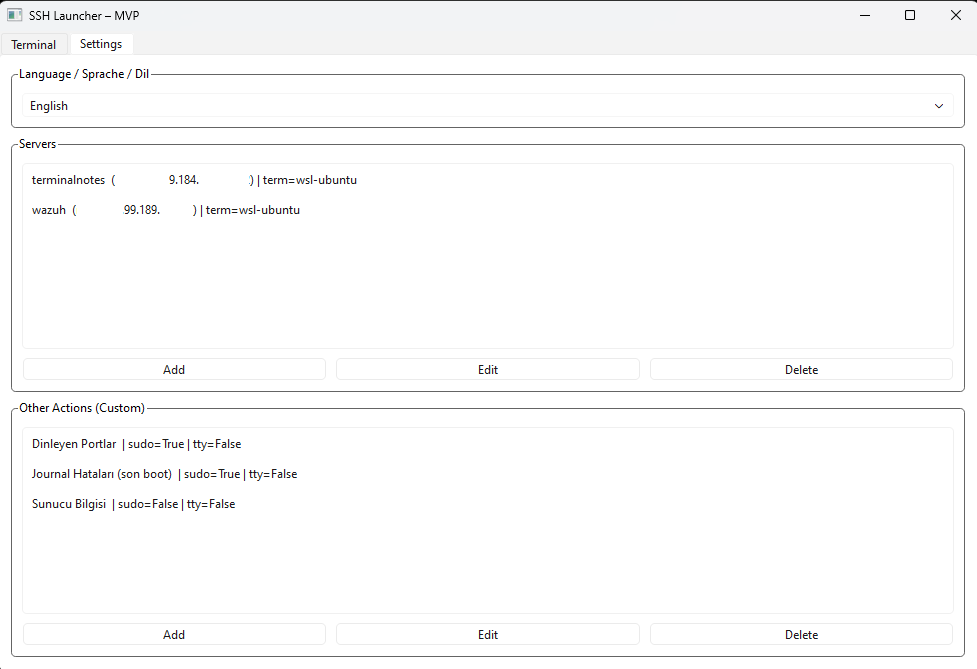
Settings Tab
This is where I:
- Change the interface language (Turkish, English, or German),
- Manage my list of servers (add, edit, delete),
- And create custom user-defined actions for my own frequently used commands.
Features in Detail
Server Management
Each server profile includes:
- Name, host/IP, port, username, and preferred terminal profile.
- Passwords are not stored in plain text — if provided, they’re securely saved in the system’s keyring (Windows Credential Manager or Linux Secret Service).
Terminal Profiles
There are four default terminal profiles:
- WSL Ubuntu
- PowerShell
- Windows Terminal
- Command Prompt (CMD)
Each has its own launchTemplate, so when I connect, it opens in the correct environment.
I can even add my own profiles in the JSON config.
Custom (User-Defined) Actions
This is one of my favorite parts.
I can save my own SSH commands and execute them directly from the menu.
For example:
systemctl restart nginx
or
tail -f /var/log/syslog
Custom actions can include placeholders like:
{host}, {user}, {port}, {name}, {id}
and options such as:
- “Run with sudo”
- “Request TTY” (for interactive commands)
So I can define both simple and interactive commands easily.
Keyring Integration
Passwords are stored securely using the system’s keyring service, never in the config file.
This makes sudo operations seamless and safe.
Config System
All settings are saved in:
~/.ssh-launcher/config.json
If it doesn’t exist, the app automatically creates it with default data.
The structure looks like this:
{
  "language": "en",
  "servers": [...],
  "terminalProfiles": [...],
  "customActions": [...]
}
Multi-Language UI
The interface supports Turkish, English, and German.
When I change the language, it’s saved to the config, and the app loads in that language the next time I open it.
The translation system is simple — it uses my own Python TEXTS dictionary with a small helper function called tr_text().
Interface Design
- Built entirely with Qt widgets.
- Uses native UI styling and clean layouts.
- Dialogs like Server Editor, Service Selector, and Custom Action Editor are all custom
QDialogwindows. - Notifications and prompts use
QMessageBoxandQInputDialog.
Everything is signal-based (Qt’s reactive event model).
Technical Side
- Uses QProcess to run SSH commands asynchronously — the UI never freezes.
- Each process streams both stdout and stderr into the output area.
- Includes proper terminate/kill handling for stopping processes.
- Secure password input fields (
QLineEdit.Password). - Any change to config automatically triggers the
changedsignal, refreshing the UI.
In Short
This app is my personal GUI-based SSH manager and automation tool.
It helps me:
- Quickly connect to any of my servers,
- Run system maintenance tasks with one click,
- View live logs and outputs without juggling multiple terminals,
- And define my own custom server commands right inside the interface.
It’s like having a mini control panel for all my Linux machines — similar to Webmin or Cockpit, but completely local, lightweight, and private.
No background daemons, no cloud dependency — everything runs from my computer, securely through SSH.