Sharing notes from my ongoing learning journey — what I build, break and understand along the way.
Active Directory Lab Guide: Building Replica, Child & Tree Domains

Building a Multi-Domain Active Directory Forest
In the world of IT, setting up a single server is just “Day 1” stuff. The real expertise lies in understanding how to build a network that can survive failures, scale across different office locations, and manage complex company structures.
In this lab guide, we will walk through a complete Windows Server 2022 deployment scenario. We won’t just click buttons; we will explain why we are doing it. We will set up a Replica Domain Controller, automate tasks with PowerShell, and architect a complex “Forest” containing both a Child Domain and a Tree Domain.
Note: This lab was performed in a German language environment. As IT professionals, navigating the OS by technical intuition—regardless of the interface language—is a valuable skill!
Part 1: High Availability – The Replica DC
Our first task is to ensure redundancy. A single Domain Controller (DC) is a single point of failure. If it goes down, no one can log in. To fix this, we deployed Server1 as a secondary DC for our root domain, gfnlab.test.
The Logic Behind It: Why a Replica DC?
Think of a Domain Controller (DC) as the Security Guard at the entrance of your company building. They check ID cards (usernames/passwords) and let people in.
If you only have one security guard and they get sick (server crash), the building is locked, and no one can work. By setting up
Server1as a Replica DC, we are hiring a second security guard. If one is unavailable, the other keeps the business running.
The Setup
After installing the AD DS Role, we began the promotion process.
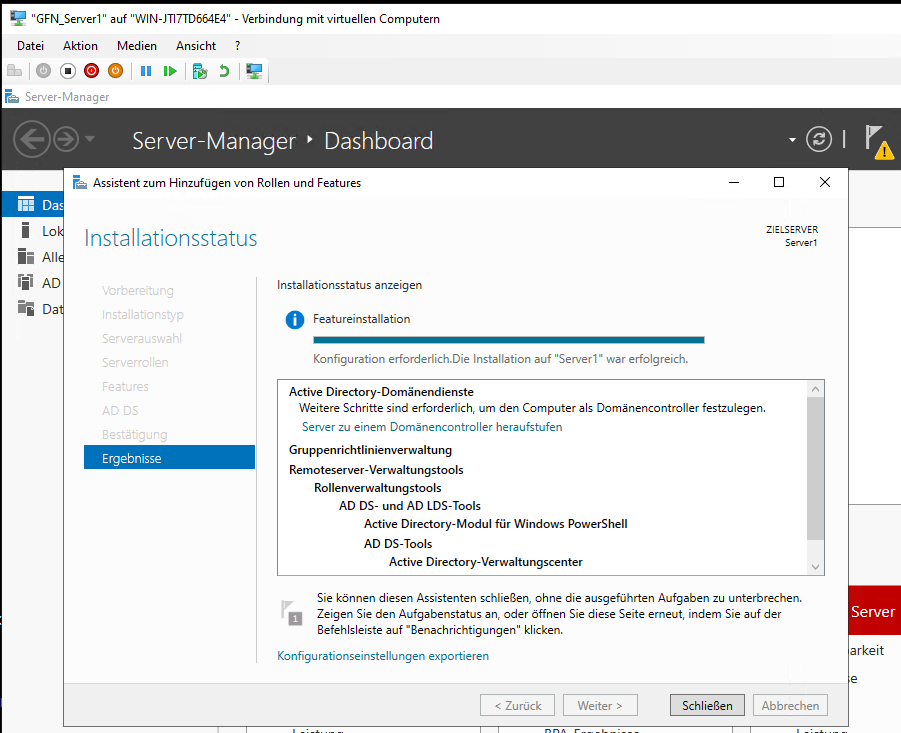
Caption: Role installation complete, ready for promotion.
Critical Configuration: Global Catalog
During the configuration, I made a specific architectural choice. While adding Server1 to the existing domain, I unchecked the Global Catalog (GC) option.
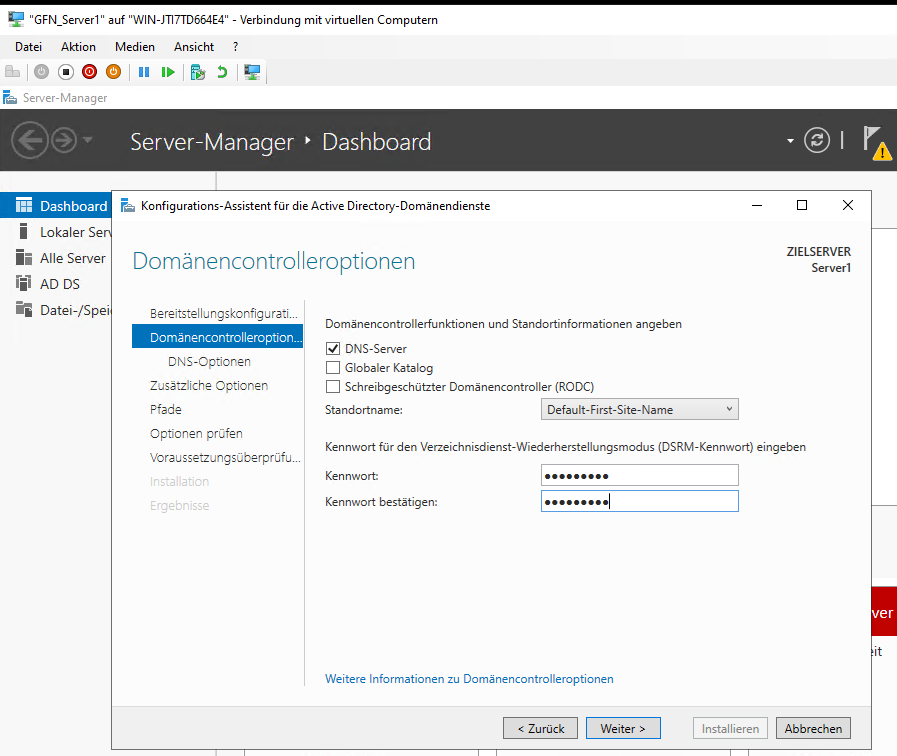
Caption: Intentionally disabling the Global Catalog role for this exercise.
Pro-Tip: The Global Catalog is a complete copy of the “company address book.” In small offices, every server should have it. However, in massive companies with offices in different cities connected by slow internet, constantly updating this huge book everywhere can slow things down. That’s why we sometimes turn it off on specific servers.
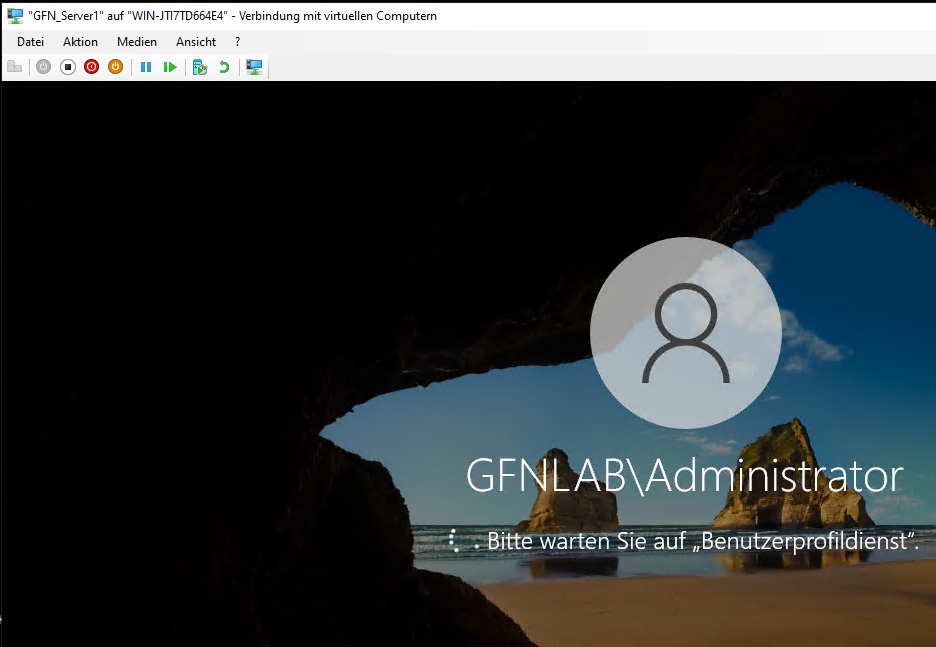
After passing the prerequisites check, the server installed the services and rebooted automatically.
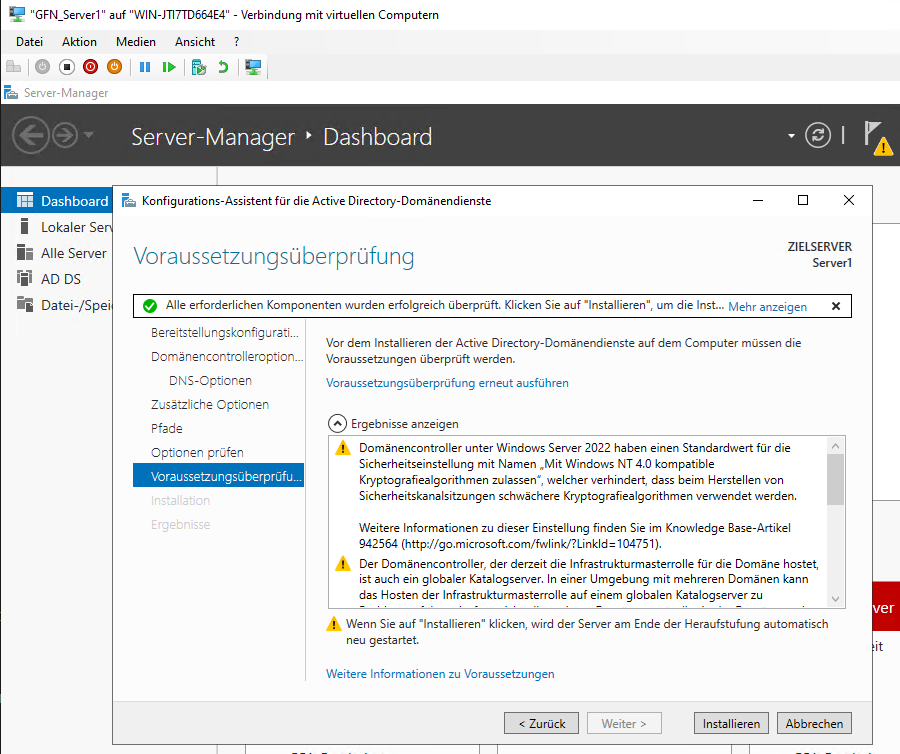
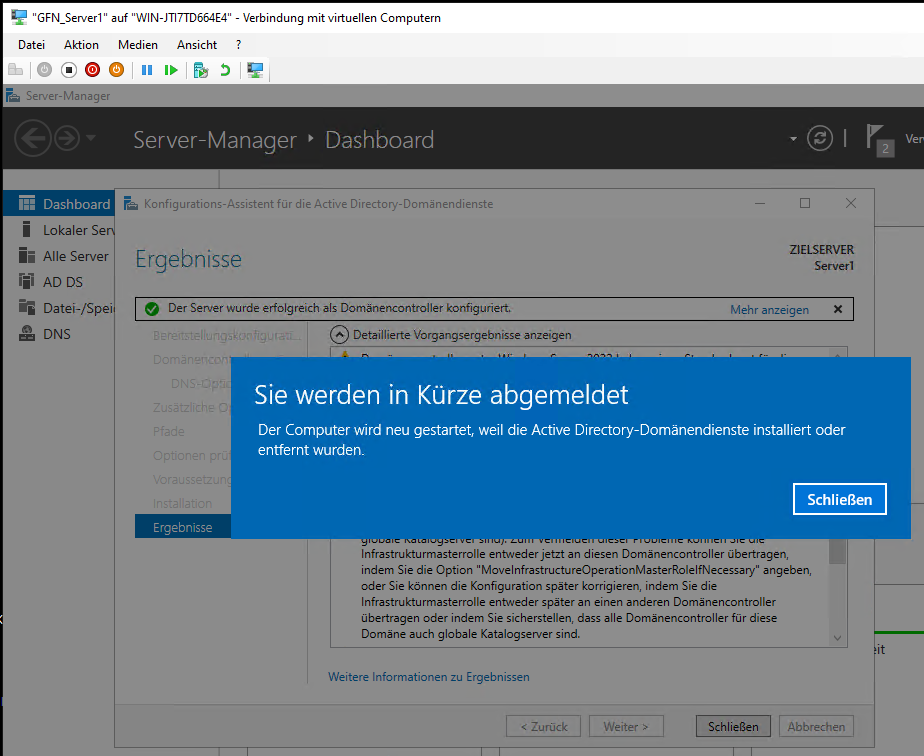
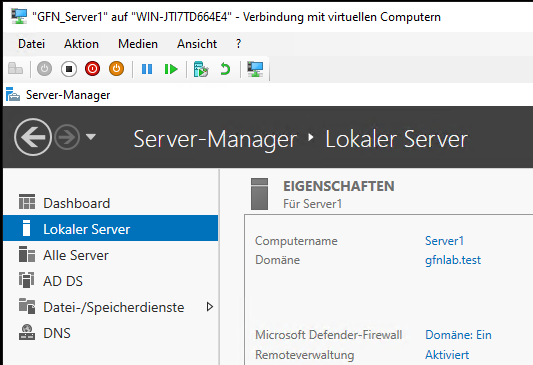
Upon restart, Server Manager confirmed that Server1 was successfully joined and active.
Part 2: Member Servers – Joining the “Club”
Next, we needed to populate our network with more servers. We used two different methods to join them to the domain.
The Logic Behind It: Workgroup vs. Domain
- Workgroup: Think of this as a group of freelancers working in a coffee shop. They are independent, manage their own laptops, and don’t follow a central boss.
- Domain: Think of this as employees in a corporation. They follow central rules (Group Policies), use a central directory, and are part of a managed team. We are moving our servers from the “Coffee Shop” to the “Corporation.”
Method A: The GUI Approach (Server2)
For Server2, I used the standard System Properties interface—the classic way most people learn first.
- Navigate to Local Server.
- Click on the Workgroup name.
- Change the domain to
gfnlab.test.
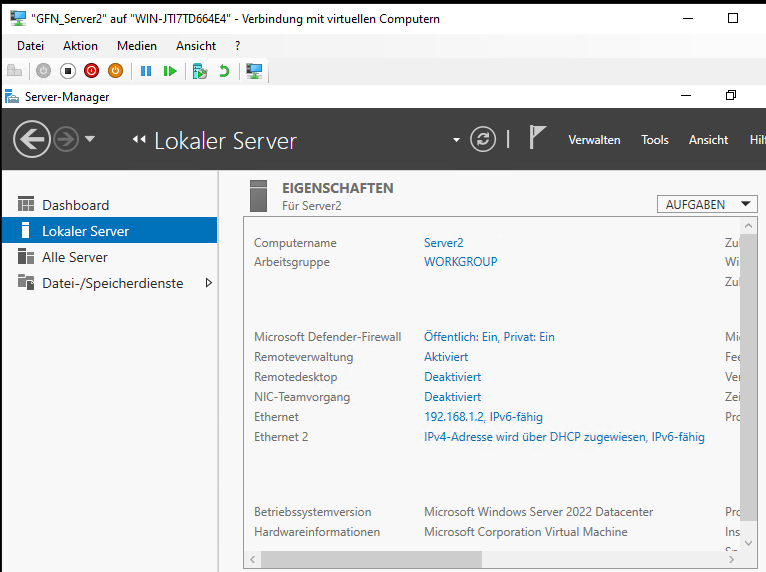
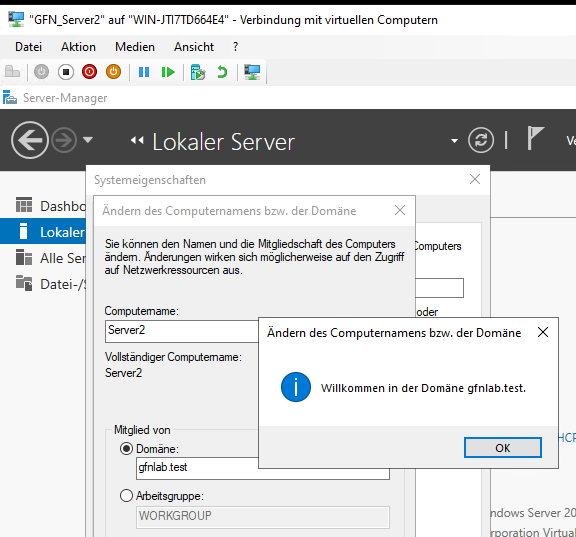
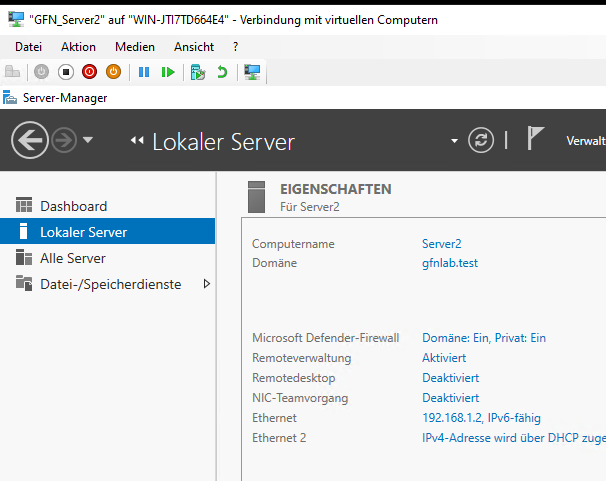
Caption: The classic “Welcome to the domain” success message.
Method B: The PowerShell Approach (Server3)
For Server3, I used PowerShell. This method is faster and essential for managing Server Core (servers with no graphical screen).
I executed the following command:
Add-Computer -DomainName gfnlab.test -Credential gfnlab\administrator -Force -Restart
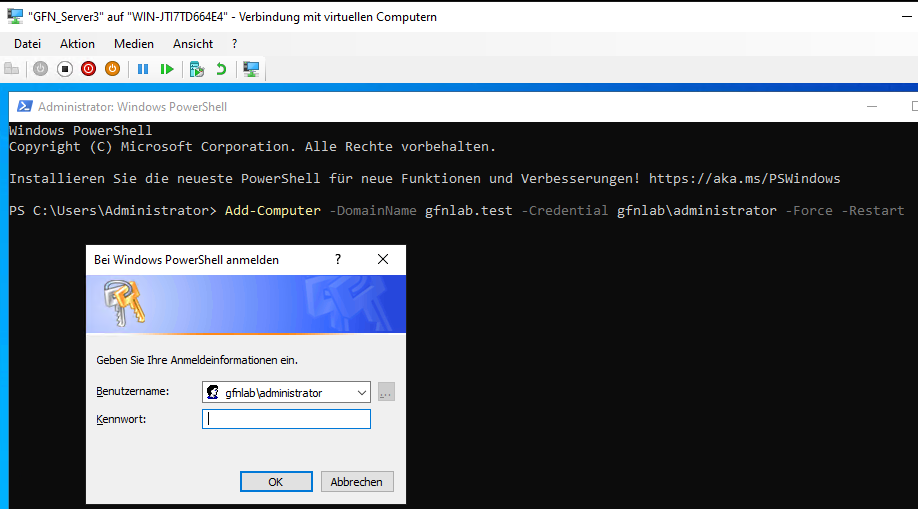
Caption: One line of code replaces multiple clicks and windows.
Part 3: Advanced Management & Visibility
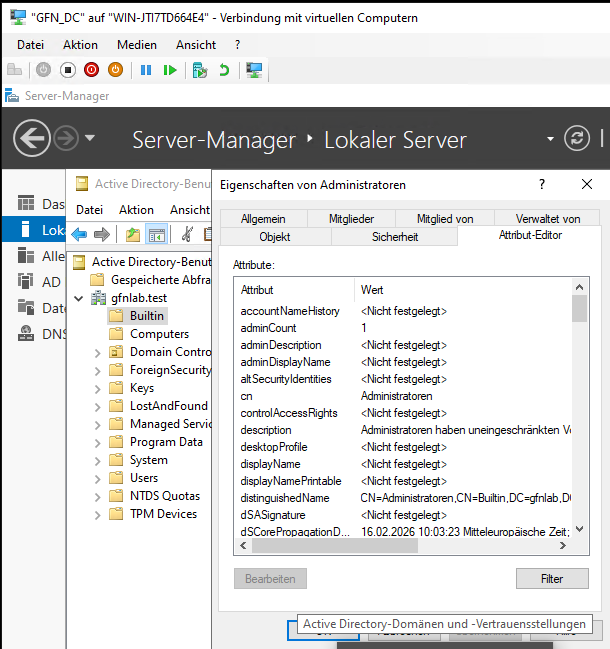
Before expanding the forest, it’s crucial to know how to look “under the hood.” By default, the Active Directory Users and Computers (ADUC) console hides many technical details.
I enabled “Advanced Features” (Erweiterte Features) via the View menu.
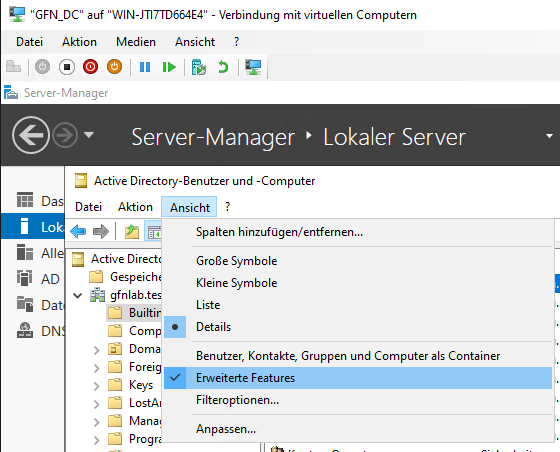
This reveals the Attribute Editor tab, allowing direct access to the raw database attributes of AD objects—a lifesaver for troubleshooting complex issues.
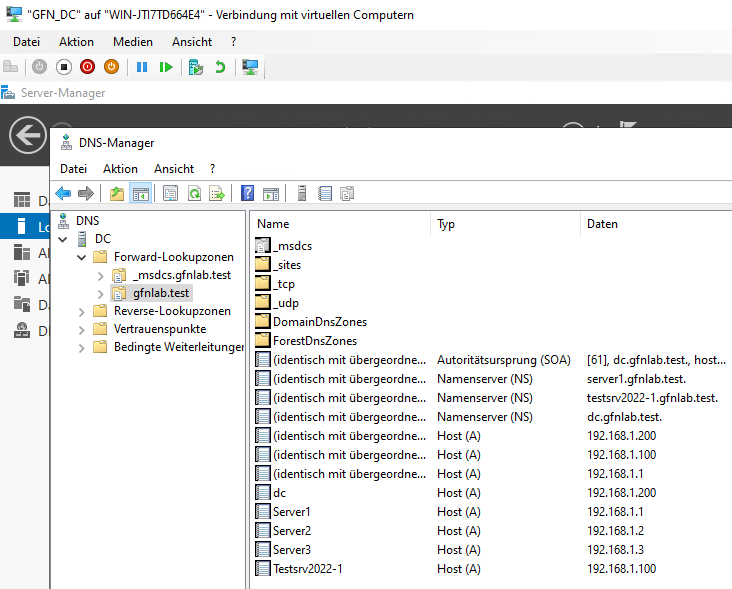
We also verified that all our servers (DC, Server1, Server2, Server3) were correctly registered in DNS, ensuring they can find each other.
Part 4: Forest Architecture – Building the Family Tree
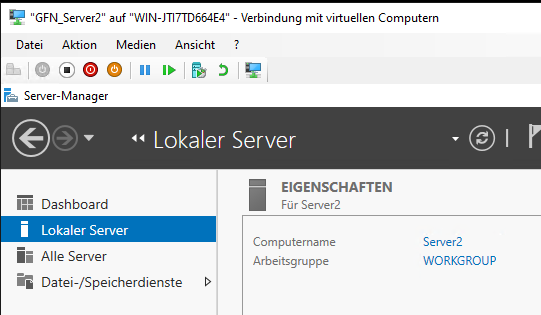
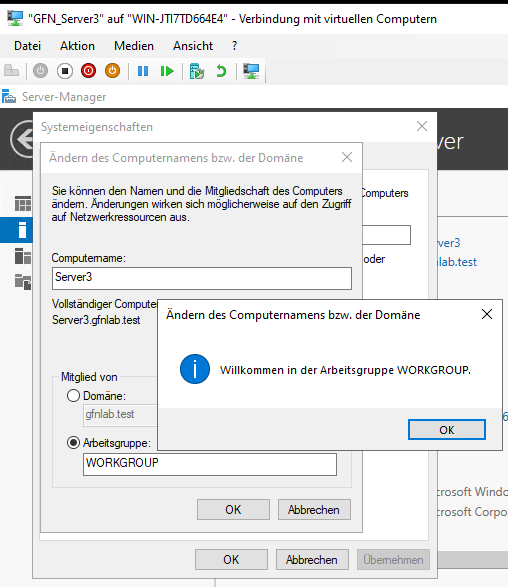
Now for the main event. We dismantled our simple flat structure to build a hierarchy. I removed Server2 and Server3 from the domain to promote them as DCs for their own separate domains.
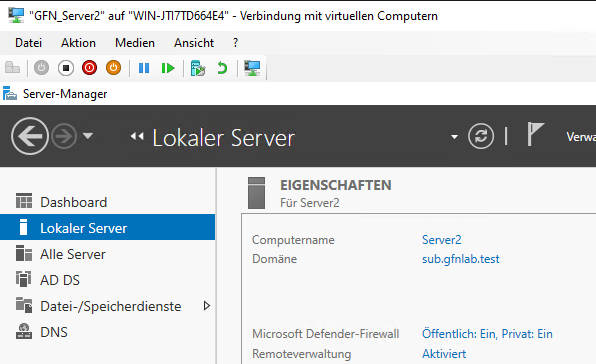
Scenario A: The Child Domain (sub.gfnlab.test)
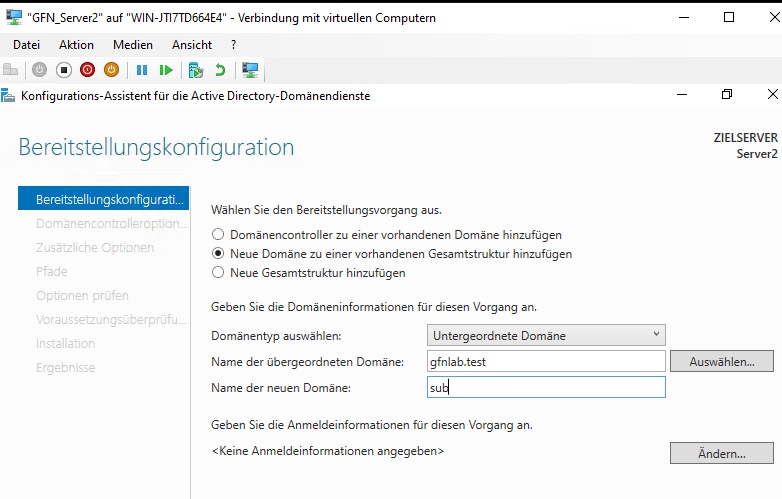
On Server2, I created a Child Domain.
- Parent:
gfnlab.test - New Domain Name:
sub
The Logic Behind It: What is a Child Domain?
Think of this as opening a Branch Office. The main company is “GFN Lab.” The branch office is “Sub.” They share the same family name (
.gfnlab.test), but the branch office has its own local managers and rules.
- Result:
sub.gfnlab.test
Scenario B: The Tree Domain (it.pro)
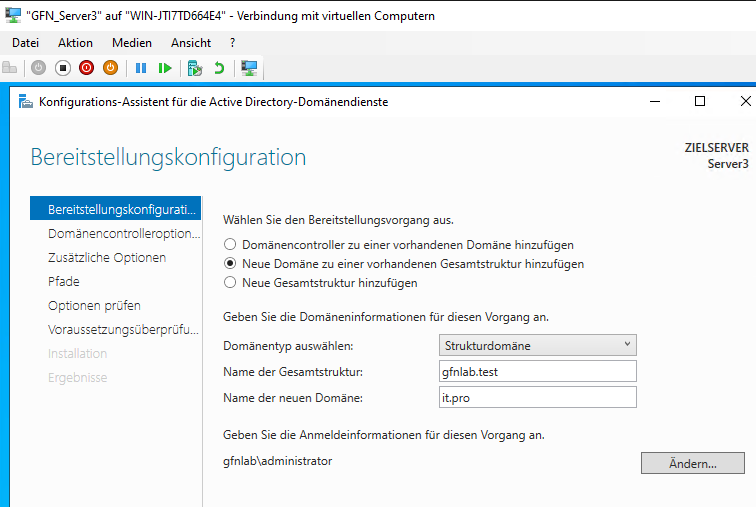
On Server3, I established a Tree Domain.
- Forest:
gfnlab.test - New Domain Name:
it.pro
The Logic Behind It: What is a Tree Domain?
Imagine your company acquires a completely different company with a different brand name. They are now part of the same corporate group (Forest), they share resources and trust each other, but they keep their original name. They don’t share the family name.
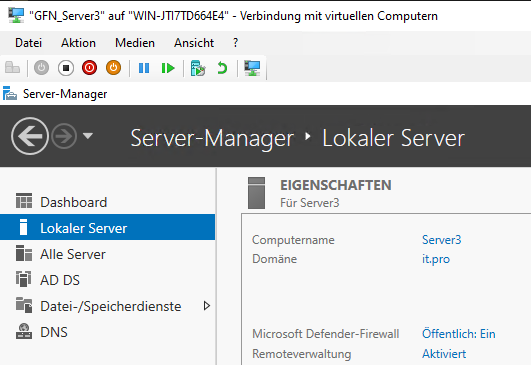
- Result:
it.pro(notice it doesn’t say.gfnlab.testat the end).
Verifying the Trust Hierarchy
Once completed, the Active Directory Domains and Trusts console visualized our new structure perfectly.
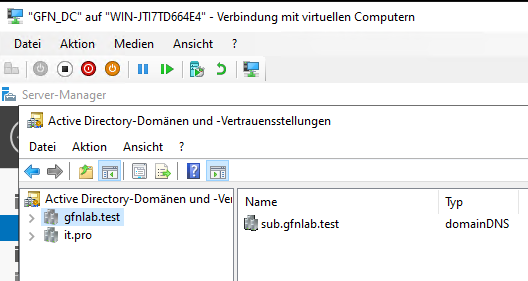
Caption: The Forest view showing the Root (gfnlab.test), the Child (sub), and the Tree (it.pro).
Part 5: DNS Troubleshooting – How Computers Find Each Other
A multi-domain forest relies entirely on DNS (Domain Name System).
The Logic Behind It: The Phonebook Problem
DNS is the phonebook of the network. It translates names (Server3) into numbers (IP Addresses). Because we created a Tree Domain (
it.pro), our main server (DC) doesn’t have the phonebook for that other company. It doesn’t know whereit.prois located. We have to tell it.
The Resolution Problem
I performed a test to verify if the Root DC could resolve names in the new domains.
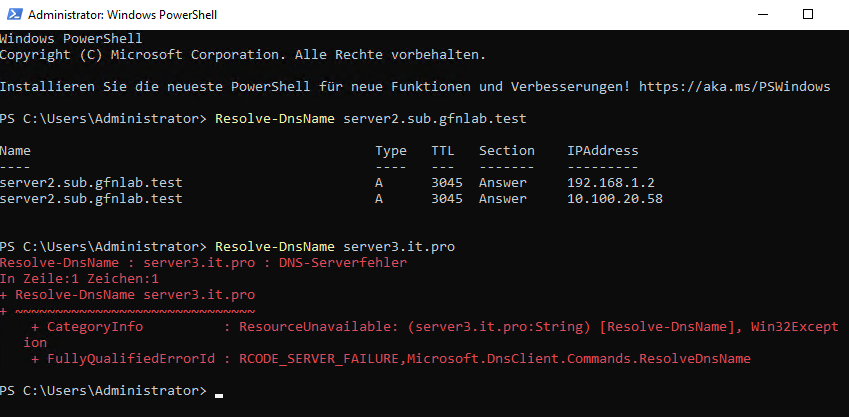
- Success:
server2.sub.gfnlab.testresolved correctly. AD automatically creates a link for Child Domains. - Failure:
server3.it.profailed (DNS-Serverfehler).
The Solution: To fix this, we configured a Conditional Forwarder on the Root DC. Basically, we told the main server: “If anyone asks you for a phone number ending in it.pro, go ask Server3 directly—he has that phonebook.”
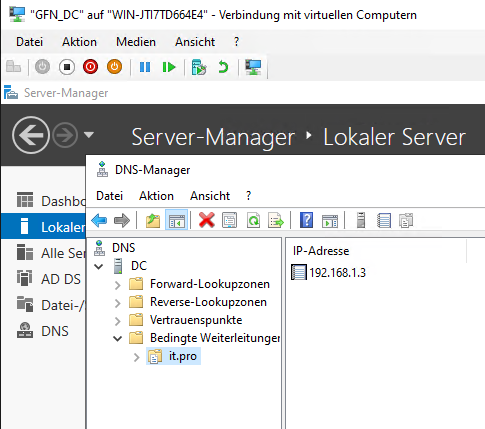
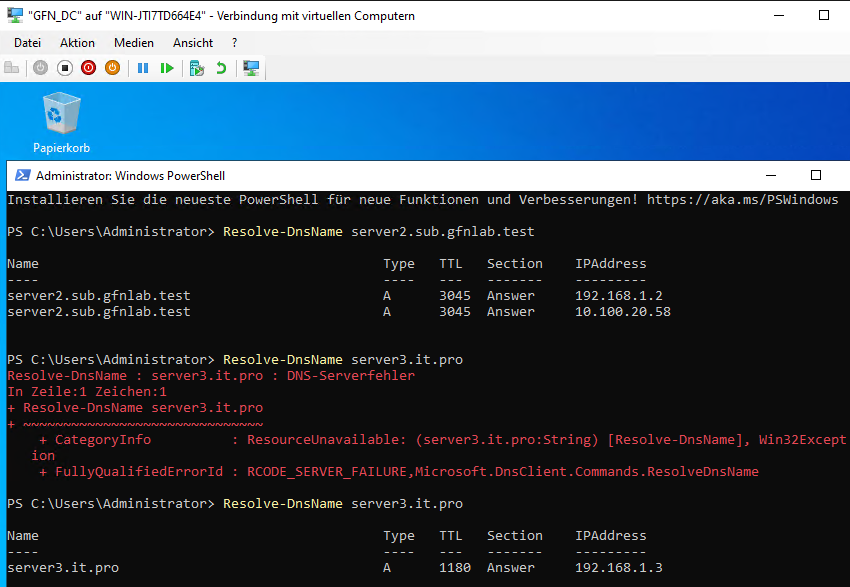
After this configuration, traffic flowed correctly across the entire forest.
Conclusion
This lab demonstrated that Active Directory is a living, breathing ecosystem. We moved from a simple single-server setup to a complex, multi-namespace Forest.