Sharing notes from my ongoing learning journey — what I build, break and understand along the way.
Step-by-Step RAID 0, 1, and 5 Setup on Hyper-V: A Technical Guide

Mastering Storage Redundancy: A Deep Dive into RAID Configuration via Hyper-V
Technical Note: The environment used for this guide was configured with German (Deutsch) as the system language. Consequently, all screenshots feature German UI terminology. To ensure clarity for English-speaking readers, I have mapped all German terms to their standard English technical equivalents throughout this article.
1. Introduction: Why RAID Matters in Modern Infrastructure
In an era where “data is the new oil,” ensuring the availability and integrity of that data is paramount. Physical drives, whether HDDs or SSDs, are prone to failure. This is where RAID (Redundant Array of Independent Disks) comes into play.
RAID is a virtualization technology that combines multiple physical disk drive components into one or more logical units for the purposes of data redundancy, performance improvement, or both.
The Three Pillars of RAID
- Redundancy (Fault Tolerance): Protection against data loss in case of drive failure.
- Performance: Increased Read/Write speeds by distributing I/O operations across multiple disks.
- Capacity: Combining smaller disks to act as one large storage volume.
2. Setting Up the Laboratory: Hyper-V Environment
Before deploying RAID in a production environment, simulating the setup in a virtual laboratory is a best practice. For this demonstration, we used a Windows-based Virtual Machine (VM) running on Hyper-V.
Provisioning Virtual Disks (VHDX)
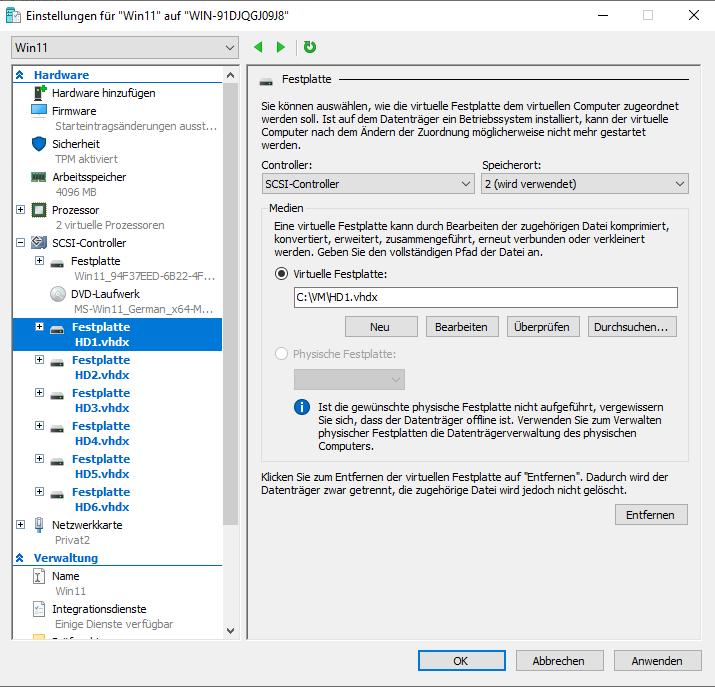
To simulate a real RAID array, we attached 6 additional virtual hard disks (VHDX) to our VM.
- Process: Navigate to VM Settings (Einstellungen) > SCSI Controller (SCSI-Controller).
- Action: Add 6 new Hard Drives (Festplatten) with 10GB/20GB each.
3. RAID 0: The Speed Demon (Striping)
German Term: Stripesetvolume
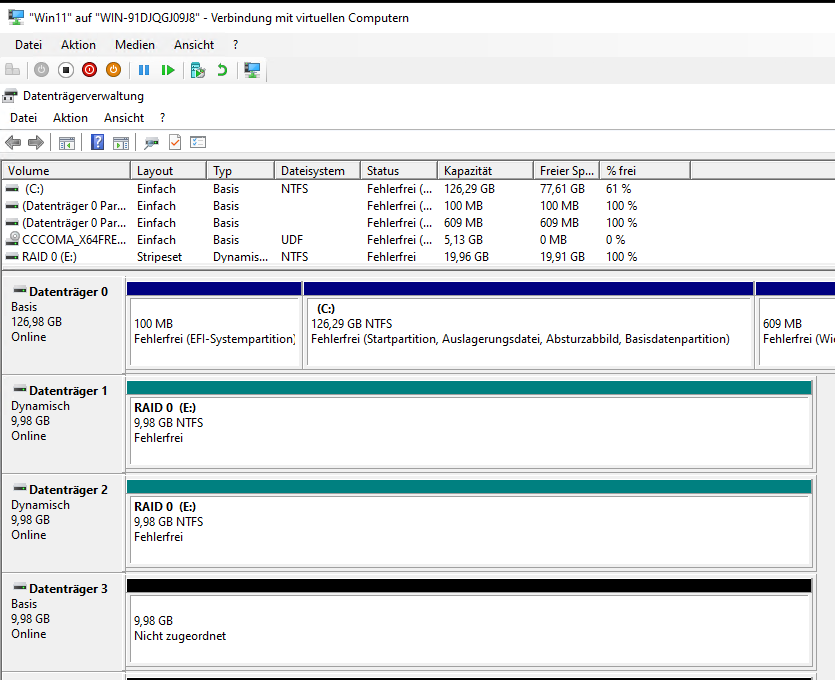
RAID 0 splits data evenly across two or more disks (striping) without parity information, redundancy, or fault tolerance.
- The Logic: If you write a 100MB file, 50MB goes to Disk A and 50MB goes to Disk B simultaneously.
- Pros: Exceptional Read/Write performance.
- Cons: Zero fault tolerance. If one disk fails, the entire volume is lost.
Implementation in Disk Management (Datenträgerverwaltung):
- Right-click an unallocated disk.
- Select “Neues Stripesetvolume…” (New Striped Volume).
- Add at least two disks to the array.
4. RAID 1: The Safe Haven (Mirroring)
German Term: Gespiegeltes Volume
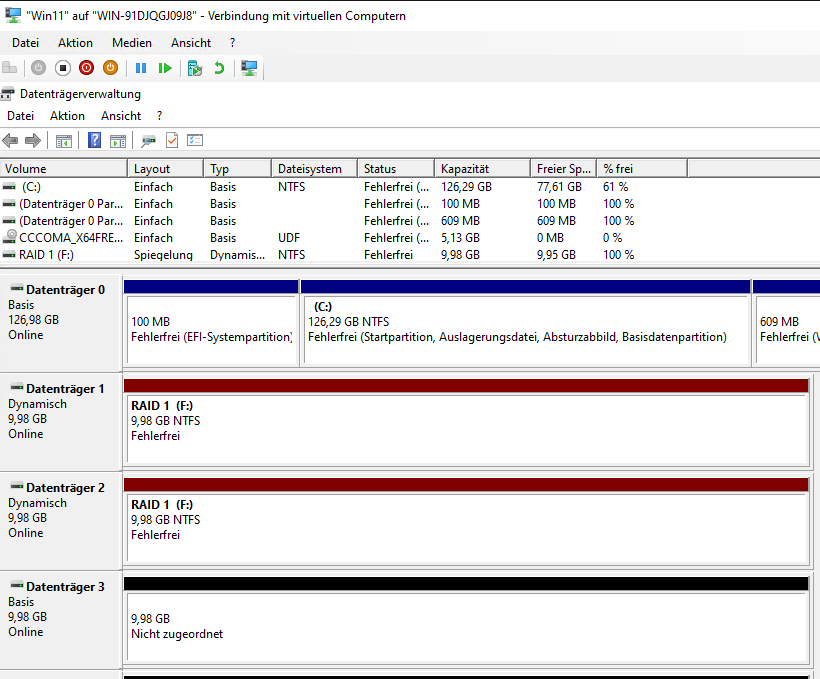
RAID 1 consists of an exact copy (or mirror) of a set of data on two or more disks. This is the simplest way to achieve high data availability.
- The Logic: Every bit of data written to Disk A is instantly cloned to Disk B.
- Pros: High reliability. If one drive fails, the system continues to run on the second drive without downtime.
- Cons: 50% capacity loss. You pay for two disks but only use the space of one.
Implementation:
- Right-click an unallocated disk.
- Select “Neues gespiegeltes Volume…” (New Mirrored Volume).
5. RAID 5: The Golden Balance (Parity)
German Term: Parität (Speicherplätze)
RAID 5 is the most common configuration for business servers and NAS devices. It requires at least 3 disks and uses “Parity” (mathematical checksums) to provide fault tolerance without the high cost of RAID 1 mirroring.
- The Logic: Data and parity bits are striped across all disks. If one disk fails, the missing data is recalculated using the parity information on the remaining disks.
- Pros: Good balance of speed, capacity, and security.
- Cons: Rebuilding a failed array can be slow and puts stress on the remaining disks.
Using Windows Storage Spaces (Speicherplätze):
For RAID 5, the modern Storage Spaces interface in Windows is superior to the legacy Disk Management.
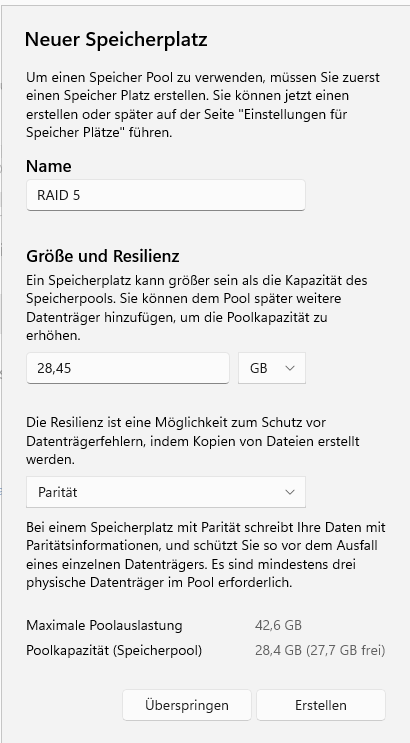
- Open “Speicherplätze verwalten” (Manage Storage Spaces).
- Create a “Neuen Pool” (New Pool) using 3 disks.
- Set “Resilienztyp” (Resiliency Type) to “Parität” (Parity).
6. Troubleshooting: Overcoming “Storage Pool” Errors
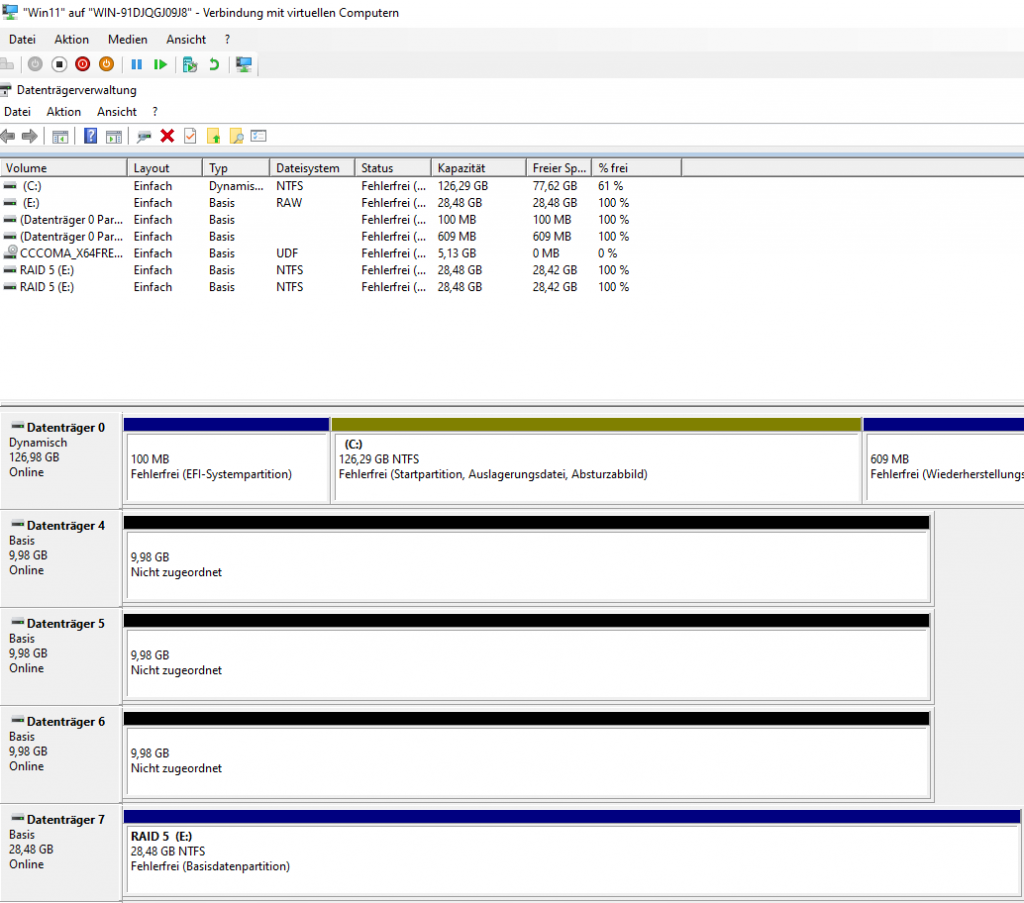
During our lab session, we encountered a common hurdle: Error 0xC0380013 (Insufficient free space). This often happens in virtual environments when disks have residual metadata from previous configurations.
The PowerShell Solution:
To fix this, we had to manually “wipe” the disks using the command line:
- Open PowerShell (Admin).
- Run
Get-PhysicalDisk | Reset-PhysicalDisk. - Or use
diskpartfollowed by thecleancommand for each disk.
7. Conclusion: Choosing the Right Path
After exploring these three configurations on Hyper-V, the conclusion is clear:
- Choose RAID 0 for non-critical data requiring high speed (e.g., temporary cache).
- Choose RAID 1 for critical system partitions or small-scale database logs.
- Choose RAID 5 for general-purpose file storage where cost-efficiency and safety must coexist.
Final Glossary: German to English Technical Mapping
| German Term (In Screenshots) | English Technical Equivalent |
| Datenträgerverwaltung | Disk Management |
| Speicherplätze | Storage Spaces |
| Nicht zugeordnet | Unallocated |
| Initialisiert | Initialized |
| Gestreiftes Volume / Stripeset | Striped Volume (RAID 0) |
| Gespiegeltes Volume | Mirrored Volume (RAID 1) |
| Parität | Parity (RAID 5) |
| Fehlerfrei | Healthy |