Sharing notes from my ongoing learning journey — what I build, break and understand along the way.
Deploying Sandbox Quick Open in a Windows Domain with Edge GPO

Enterprise Deployment of Sandbox Quick Open with Microsoft Edge, GPO and Native Messaging
In the first part of this project, I explained how Sandbox Quick Open can be installed and used on a local Windows machine.
The local version allows me to open files, folders, clipboard URLs, and browser links inside Windows Sandbox with only a few clicks. This is useful when I want to inspect something suspicious without opening it directly on my main Windows system.
In this second part, I wanted to take the same idea one step further:
Can this tool be deployed in a Windows domain environment?
The answer is yes.
In this post, I will explain how I deployed Sandbox Quick Open in a small Active Directory lab environment using:
- Microsoft Edge
- Group Policy
- Edge extension force installation
- Native Messaging Host
- IIS for internal extension hosting
- Windows Sandbox on the client
The goal was not to build a perfect production system, but to test the full deployment logic in a realistic domain environment.
What I wanted to achieve
In a company environment, users should not install browser extensions manually. They should also not manually configure Native Messaging Host files or registry keys.
So the idea was:
The administrator prepares the package once.
The Edge extension is hosted internally.
The extension is force-installed by Group Policy.
The client receives the required PowerShell scripts and Native Messaging Host files.
After that, the user can right-click a link in Microsoft Edge and choose:
Open Link in Windows SandboxThe link is then sent to the local Native Messaging Host, and Windows Sandbox opens the URL in an isolated environment.
The same client installation also keeps the file and folder right-click feature:
Open in Windows SandboxLab environment
For this test, I used a small Hyper-V domain lab.
The main machines were:
DC    Domain Controller, DNS and IIS hosting
W11   Windows 11 domain client
The domain controller was reachable as:
DC.GFNLAB.Test
192.168.1.200
For the internal extension hosting, I used this URL:
http://DC/sandboxquickopenThis URL was used to publish two important files:
updates.xml
sandbox-quick-open-edge.crx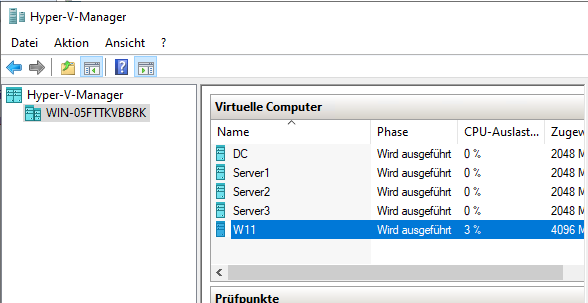
Project files used for the domain deployment
The project repository contains both local and enterprise deployment files.
Project repository:
https://github.com/ali-durmus/Sandbox-Quick-OpenFor the domain deployment, the most important folders are:
enterprise
native-host
src
The src folder contains the PowerShell scripts that open files, folders, and URLs inside Windows Sandbox.
The native-host folder contains the Native Messaging Host files used by Microsoft Edge.
The enterprise folder contains the scripts for building the Edge extension package, creating the update XML, preparing the deployment package, and generating helper files for GPO deployment.
Important enterprise values
Before building the package, I checked the enterprise configuration file:
enterprise\enterprise-config.ps1The important values were:
Enterprise Extension ID:
ggbiljdbhodacinlhnpgfncemecamjpf

Native Host Name:
com.sandboxquickopen.host

Extension Version:
0.1.0

Enterprise Install Path:
C:\Program Files\Sandbox Quick Open
These values are important because they must match across the whole deployment.
For example, the Edge extension ID must match:
- the
updates.xmlfile, - the Edge force-install policy,
- the Native Messaging Host manifest,
- the allowed extension origin.
If one of these values is wrong, the extension may install but the Native Messaging connection will not work.
Building the enterprise package
After copying the project to the domain controller, I opened PowerShell inside the project folder.
The package was built with:
.\enterprise\Setup-EnterprisePackage.ps1 -BaseUrl "http://DC/sandboxquickopen"This command prepares everything needed for the domain deployment.
It creates the Edge extension package, the update XML, the client deployment package, and the GPO helper files.
After the build, the most important generated files were:
sandbox-quick-open-edge.crx
updates.xml
sandbox-quick-open-enterprise-deployment.zip
The build also runs a basic validation test. In my case, the test result was successful:
Deployment package test passed.
Enterprise setup completed successfully.
This confirmed that the generated package was internally consistent.
At this point, the Edge extension package and the update XML were ready to be hosted on the internal web server.
Hosting the extension files on IIS
Microsoft Edge needs to download the extension package from an internal URL.
For this lab, I used IIS on the domain controller.
I installed IIS and created this folder:
C:\inetpub\wwwroot\sandboxquickopenThen I copied these two files into that folder:
sandbox-quick-open-edge.crx
updates.xml
The final browser URLs were:
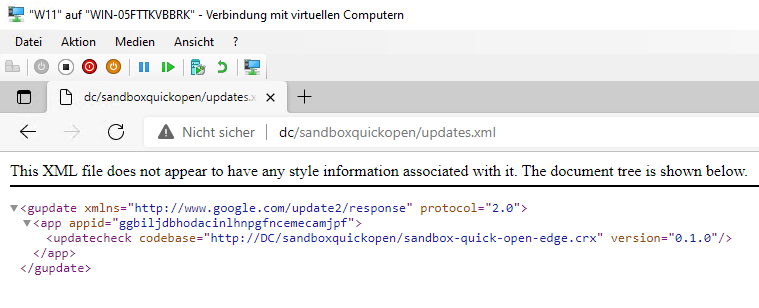
http://DC/sandboxquickopen/updates.xml
http://DC/sandboxquickopen/sandbox-quick-open-edge.crx
The updates.xml file tells Edge where the CRX file is located and which extension version should be installed.
In my lab, the XML looked like this:
<gupdate xmlns="http://www.google.com/update2/response" protocol="2.0">
  <app appid="ggbiljdbhodacinlhnpgfncemecamjpf">
    <updatecheck codebase="http://DC/sandboxquickopen/sandbox-quick-open-edge.crx" version="0.1.0"/>
  </app>
</gupdate>
I also added the .crx MIME type in IIS, because IIS may not serve CRX files correctly by default.
The MIME type was:
.crx = application/x-chrome-extensionAfter that, I tested the URLs from the browser and from the Windows 11 client.
Deploying the client files
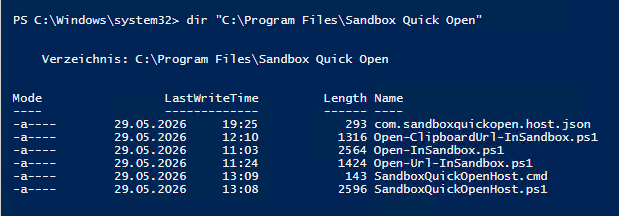
The client also needs the local part of the project.
This includes:
Open-InSandbox.ps1
Open-Url-InSandbox.ps1
Open-ClipboardUrl-InSandbox.ps1
SandboxQuickOpenHost.ps1
SandboxQuickOpenHost.cmd
com.sandboxquickopen.host.json
In an enterprise environment, this could be deployed with a startup script, SCCM, Intune, or another software deployment solution.
In my lab, I tested it manually from a shared folder.
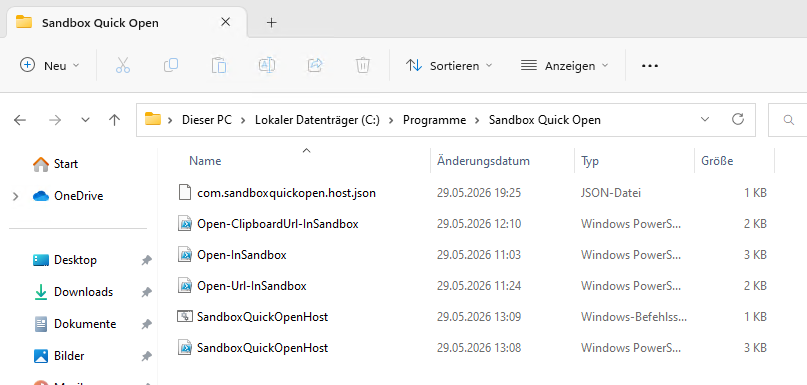
The deployment installed the files into:
C:\Program Files\Sandbox Quick OpenThis location is better for an enterprise setup than a user profile folder, because the files are installed system-wide.
After running the deployment script, the result was:
Deployment completed successfully.

Installed to:
C:\Program Files\Sandbox Quick Open
The script also created the Edge Native Messaging Host registry entry.
Native Messaging Host registration
The Edge extension cannot directly run PowerShell scripts.
Instead, it communicates with a local Native Messaging Host.
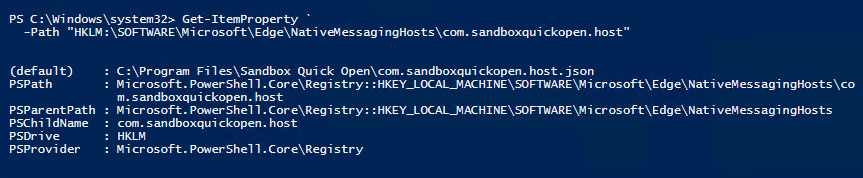
For Microsoft Edge, the Native Messaging Host was registered under:
HKLM\SOFTWARE\Microsoft\Edge\NativeMessagingHosts\com.sandboxquickopen.hostThe default value points to:
C:\Program Files\Sandbox Quick Open\com.sandboxquickopen.host.jsonThe manifest file contains the path to the local host script and the allowed extension ID.
The important part is:
"allowed_origins": [
  "chrome-extension://ggbiljdbhodacinlhnpgfncemecamjpf/"
]
This means only this specific Edge extension is allowed to communicate with the native host.
Creating the Edge Group Policy
The next step was to force-install the Edge extension with Group Policy.
The policy used was:
ExtensionInstallForcelistThe value was:
ggbiljdbhodacinlhnpgfncemecamjpf;http://DC/sandboxquickopen/updates.xmlThis value has two parts.
The first part is the extension ID:
ggbiljdbhodacinlhnpgfncemecamjpfThe second part is the update XML URL:
http://DC/sandboxquickopen/updates.xmlTogether, they tell Edge:
Install this extension ID from this internal update location.
After creating and linking the GPO, I applied it on the Windows 11 client with:
gpupdate /forceThen I checked the applied policies with:
gpresult /rThe GPO appeared under the applied computer policies.
Checking the policy in Microsoft Edge
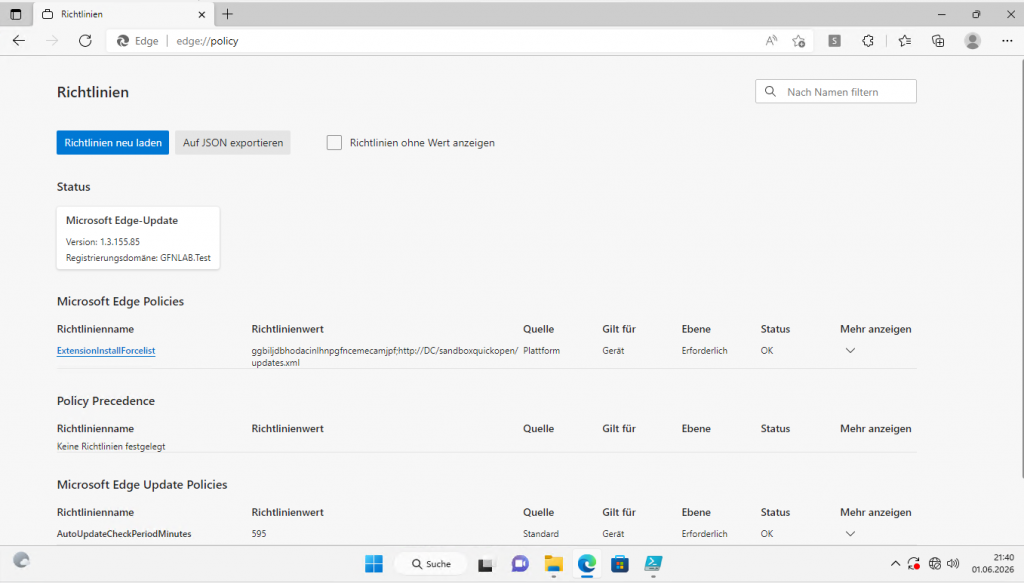
After applying the GPO, I opened:
edge://policyThe policy appeared successfully:
ExtensionInstallForcelistThe status was OK, and the value pointed to the internal updates.xml file.
This was an important checkpoint because it showed that the Group Policy was reaching Microsoft Edge correctly.
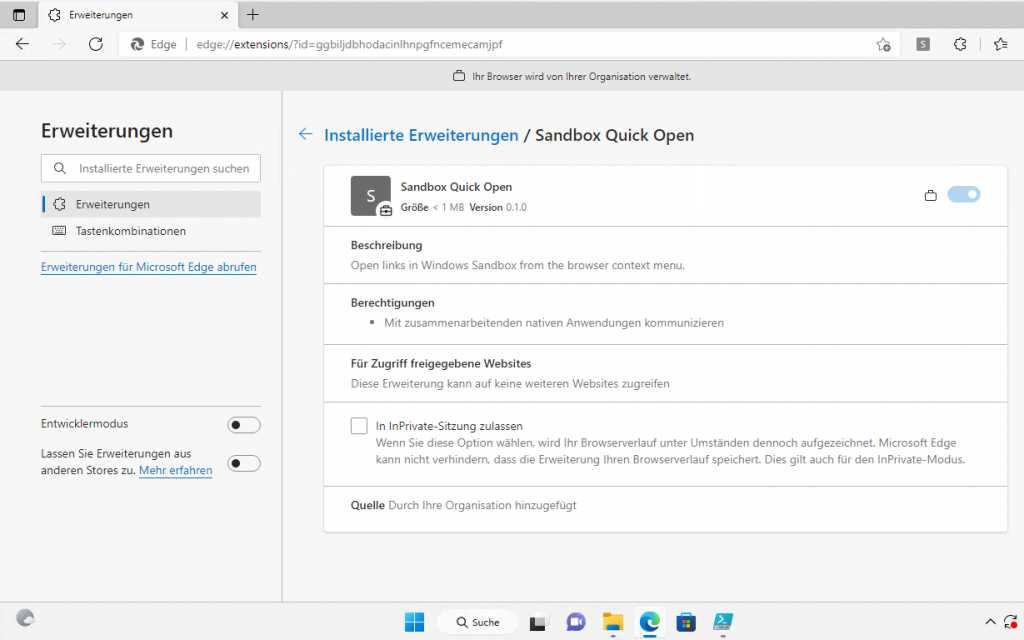
Checking the installed Edge extension
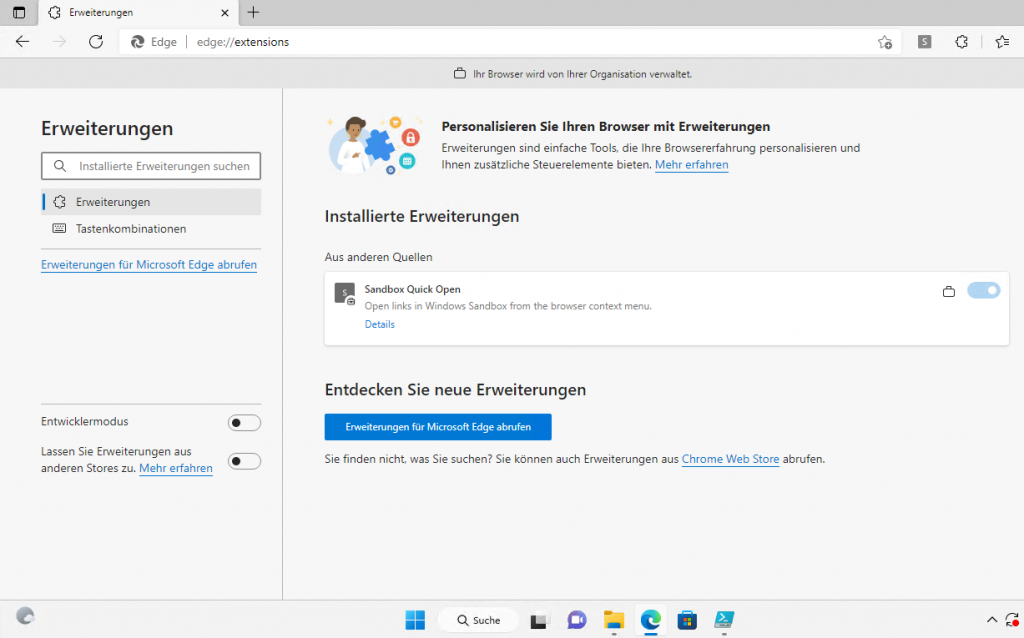
Next, I opened:
edge://extensionsThe extension was installed automatically.
Edge also showed that it was added by the organization.
In the German UI, this appeared as:
Durch Ihre Organisation hinzugefügtIn English:
Added by your organizationThis confirms that the extension was not manually installed by the user, but deployed through policy.
Testing the Edge right-click menu
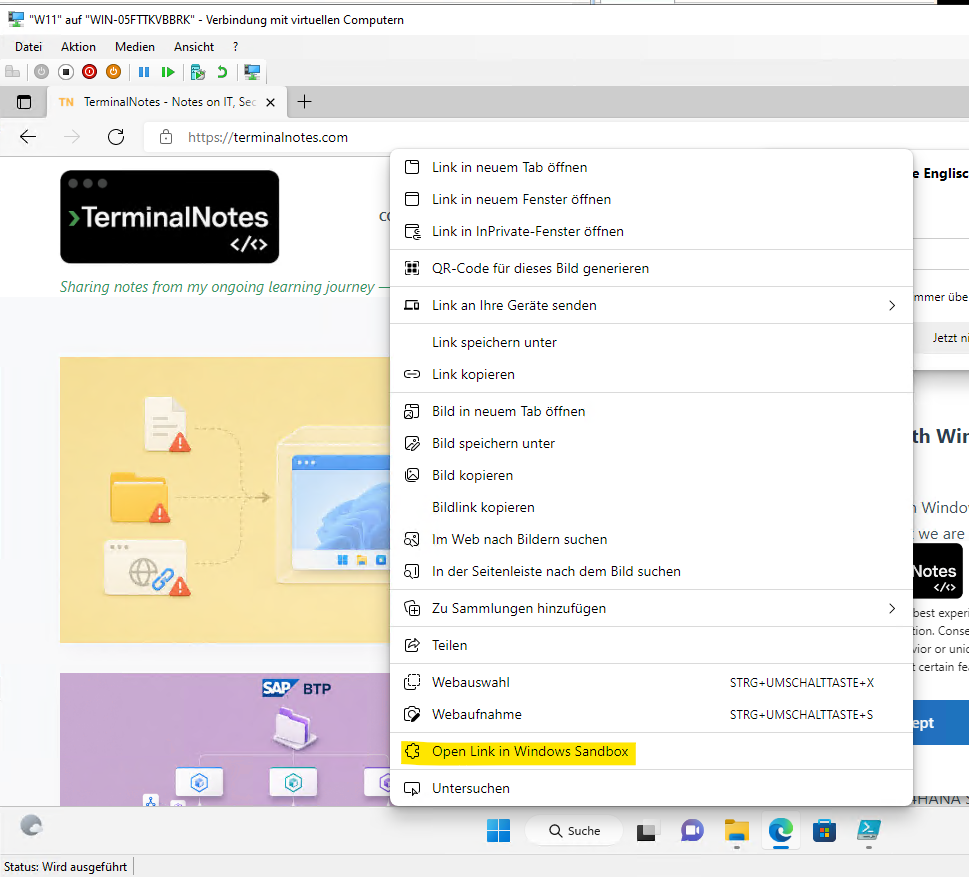
After the extension was installed, I opened a web page and right-clicked a link.
The new menu item appeared:
Open Link in Windows SandboxThis confirmed that the Edge extension was loaded and the context menu was active.
At this point, the extension side was working.
The remaining question was whether the full chain worked:
Edge extension
→ Native Messaging Host
→ PowerShell script
→ Windows Sandbox
Testing file opening in Windows Sandbox
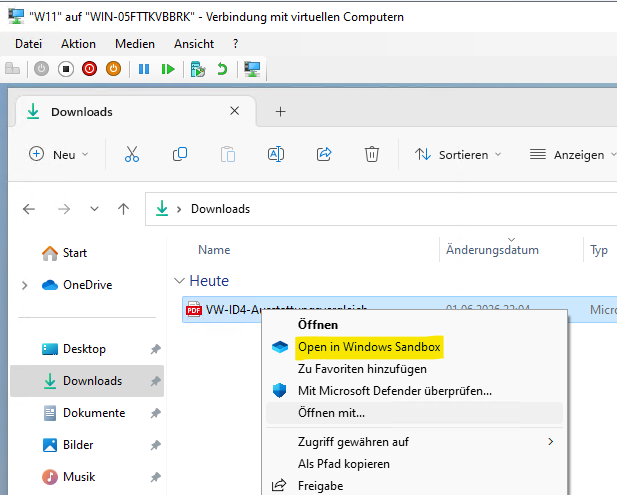
The file and folder context menu also worked on the Windows 11 client.
When I right-clicked a test file and selected:
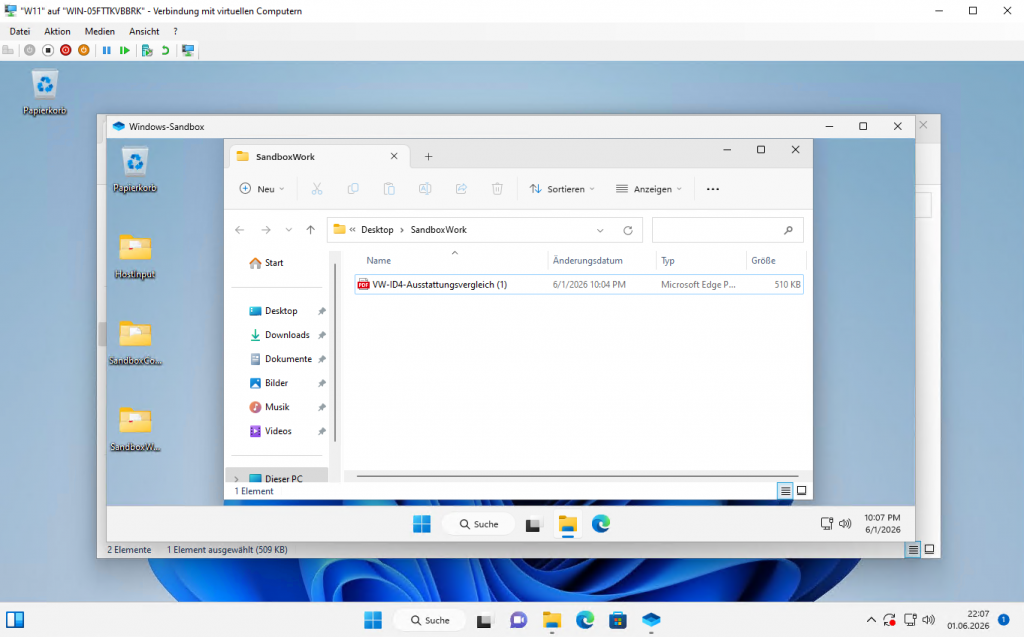
Open in Windows SandboxWindows Sandbox opened and the selected file was copied into the sandbox environment.
Inside Sandbox, the file appeared under:
SandboxWorkThis means the local file workflow was working correctly.
A note about the lab performance
My Windows 11 client was also a virtual machine and had only limited RAM assigned.
Because of that, Windows Sandbox was not very fast in this lab. Opening larger files, such as PDFs, was slow.
But for this test, performance was not the main point.
The goal was to prove the deployment logic:
GPO installs the Edge extension
Client deployment installs the Native Messaging Host
The context menu appears
Windows Sandbox receives the file or URL
For a real environment, the client should have enough RAM and virtualization support enabled.
Troubleshooting: Edge menu appeared, but the URL did not open
During the test, I found an important issue.
The Edge right-click menu appeared correctly, but clicking it did not open the link in Windows Sandbox.
The file and folder context menu worked.
The URL script also worked when I tested it manually with PowerShell.
So the problem was not Windows Sandbox itself.
The problem was in the Native Messaging Host script.
The host script was looking for Open-Url-InSandbox.ps1 under the user profile path:
$OpenUrlScript = Join-Path $env:LOCALAPPDATA "Sandbox Quick Open\Open-Url-InSandbox.ps1"This path is correct for a local per-user installation.
But in the enterprise deployment, the script is installed under:
C:\Program Files\Sandbox Quick OpenSo the native host could not find the URL script.
The fix was to resolve the script path from the native host’s own directory:
$OpenUrlScript = Join-Path $PSScriptRoot "Open-Url-InSandbox.ps1"After this change, the full Edge workflow worked.
This was a useful difference between local installation and enterprise installation.
Local installation can use:
%LOCALAPPDATA%But enterprise installation should use a stable system-wide location such as:
C:\Program FilesFinal result
At the end of the test, the domain deployment worked successfully.
The following parts were verified:
IIS hosted the Edge extension package and updates.xml
The Windows 11 client could access the hosted files
The client deployment installed the scripts under Program Files
The Edge Native Messaging Host registry key was created
The Edge force-install GPO was applied
The policy appeared in edge://policy
The extension appeared in edge://extensions
The extension was shown as added by the organization
The Edge right-click menu appeared
The file right-click workflow worked
The Edge link workflow worked after the native host path fix
The final workflow is:
User right-clicks a link in Edge
→ clicks Open Link in Windows Sandbox
→ Edge sends the URL to the Native Messaging Host
→ Native host starts the PowerShell URL script
→ Windows Sandbox opens the URL in an isolated environment
This test showed that Sandbox Quick Open can be deployed in a Windows domain environment using Microsoft Edge Group Policy and Native Messaging Host.
It also showed an important practical point: local tools often need small path and deployment adjustments before they work cleanly in an enterprise environment.