Sharing notes from my ongoing learning journey — what I build, break and understand along the way.
Department-Based Network Drive Mapping with Group Policy

Part 2: Department-Based Network Drive Mapping with Group Policy
1. Introduction
In this part of the Active Directory and Group Policy lab series, I will configure department-based network drive mapping by using Group Policy Preferences.
In Part 1, I configured user-based Group Policy settings for wallpaper enforcement and Run menu restriction. In this part, I will continue with a user-based Group Policy configuration, but this time the goal is to automatically map a network drive for a department user.
The scenario is simple: when a Buchhaltung department user signs in to the Windows 11 client, the user should automatically receive a mapped network drive.
For this lab, the Buchhaltung department will receive the following drive mapping:
B: → \\DC\Shares\BuchhaltungThis part focuses only on network drive mapping. Folder Redirection is not covered in this section.
2. Lab Environment
The lab environment is running on Hyper-V and consists of an Active Directory domain.
Domain name:
GFNLAB.TestDomain Controller name:
DCThe Domain Controller has the following roles and tools installed:
Active Directory Domain Services
DNS
Group Policy Management Console
Active Directory Users and Computers
The test will be performed on a Windows 11 client that is already joined to the domain.
Test user:
Frieda FleissigUser location in Active Directory:
GFNLAB.Test → Buchhaltung → BenutzerIn this part, the first drive mapping configuration will be applied only to the Buchhaltung department
3. Goal
The goal of this lab is to make sure that Buchhaltung users automatically receive a department network drive after signing in to the Windows 11 client.
Target drive mapping:
B: → \\DC\Shares\BuchhaltungA general department-based drive mapping structure could look like this:
Buchhaltung users → B: → \\DC\Shares\Buchhaltung
Verkauf users     → V: → \\DC\Shares\Verkauf
Lager users       → L: → \\DC\Shares\Lager
GF users          → G: → \\DC\Shares\GF
In this lab, I will configure only the Buchhaltung mapping.
4. Creating the Shared Folder Structure
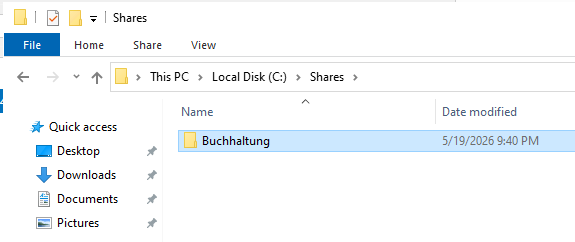
First, I created the folder structure on the Domain Controller.
On the C: drive, I created a folder named Shares. Inside this folder, I created another folder for the Buchhaltung department.
The folder structure is:
C:\
└── Shares
    └── Buchhaltung
This structure allows me to share the main Shares folder and manage department folders below it.
5. Creating the Buchhaltung Security Group
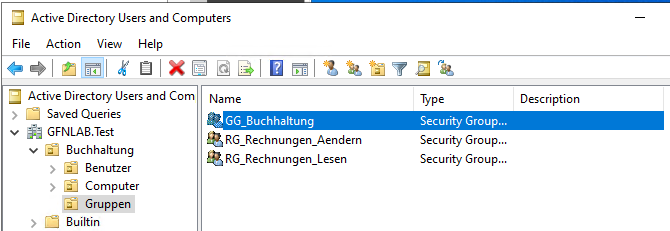
To apply the drive mapping only to the correct department users, I created a security group for the Buchhaltung department.
In Active Directory Users and Computers, I went to:
GFNLAB.Test → Buchhaltung → GruppenThen I created a new group.
Group name:
GG_BuchhaltungGroup settings:
Group scope: Global
Group type: Security
This group represents Buchhaltung department users. Later, I will use this group for Item-Level Targeting in Group Policy Preferences.
6. Adding the User to the Security Group
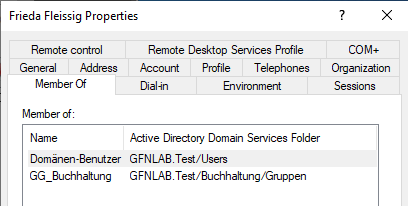
The test user for this lab is Frieda Fleissig. Since this user should receive the Buchhaltung network drive, I added the user to the GG_Buchhaltung security group.
User location:
GFNLAB.Test → Buchhaltung → BenutzerI opened the properties of the Frieda Fleissig user and added the user to the following group from the Member Of tab:
GG_BuchhaltungAfter this step, Frieda Fleissig became a member of the Buchhaltung security group.
7. Sharing the Shares Folder
Next, I shared the C:\Shares folder so that it could be accessed over the network.
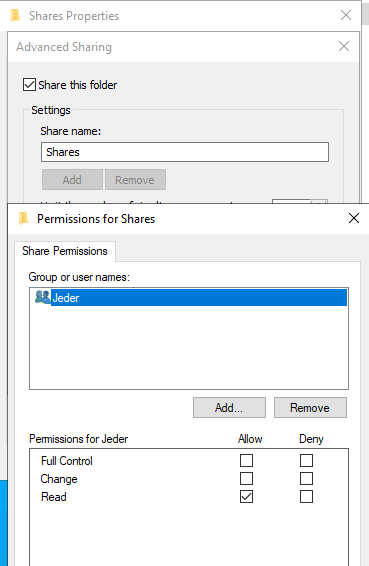
I opened the properties of the C:\Shares folder, went to the Sharing tab, and used Advanced Sharing.
The share name was configured as:
SharesThis created the following UNC path:
\\DC\SharesWith the Buchhaltung subfolder, the final target path became:
\\DC\Shares\BuchhaltungFor the share permissions, I allowed basic read access at the share level:
Everyone: ReadThe detailed access control will be handled by NTFS permissions on the department folder.
8. Configuring NTFS Permissions
After configuring the share, I configured the NTFS permissions on the Buchhaltung folder.
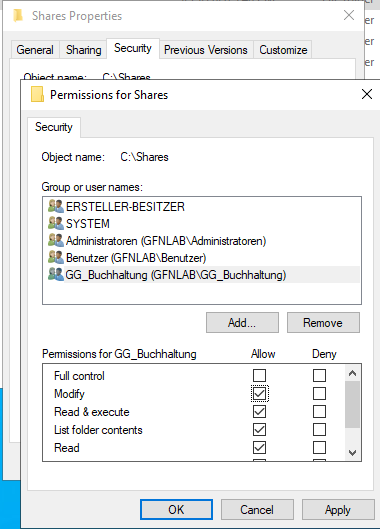
I opened the Security tab of:
C:\Shares\BuchhaltungThen I added the following security group:
GG_BuchhaltungFor this group, I assigned the following permissions:
Modify
Read & execute
List folder contents
Read
Write
With these permissions, members of GG_Buchhaltung can read, write, and modify files inside the Buchhaltung folder.
Administrative permissions such as SYSTEM and Domain Admins should remain in place so that the system and administrators can still manage the folder.
9. Creating a New GPO for Drive Mapping
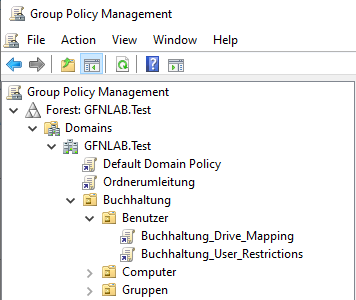
For this part, I created a separate GPO instead of using the GPO from Part 1.
New GPO name:
Buchhaltung_Drive_MappingBecause this is a user-based setting, I linked the GPO to the OU where the user account is located.
Target OU:
GFNLAB.Test → Buchhaltung → BenutzerThis allows users inside the Buchhaltung Benutzer OU to receive the drive mapping policy.
10. Creating the Drive Map with Group Policy Preferences
After creating the GPO, I edited it in Group Policy Management Editor.
I navigated to:
User Configuration
→ Preferences
→ Windows Settings
→ Drive Maps
Then I created a new mapped drive.
The drive mapping was configured with the following settings:
Action: Update
Location: \\DC\Shares\Buchhaltung
Reconnect: Enabled
Label as: Buchhaltung
Drive Letter: B:
I used the Update action because it creates the drive mapping if it does not exist and updates it if it already exists.
With this configuration, the B: drive should automatically point to:
\\DC\Shares\Buchhaltung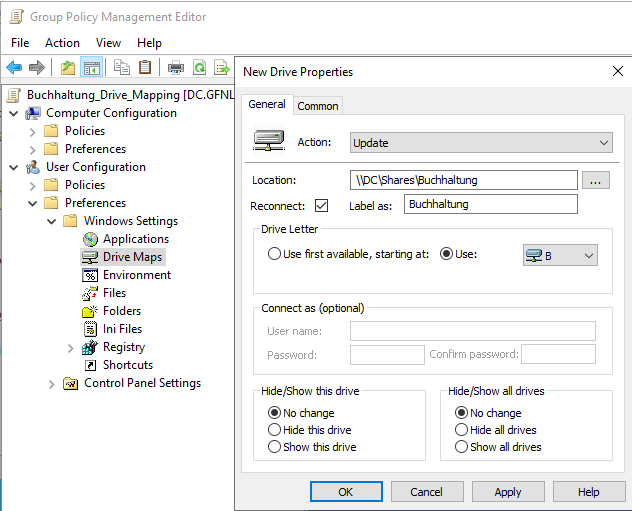
11. Configuring Item-Level Targeting
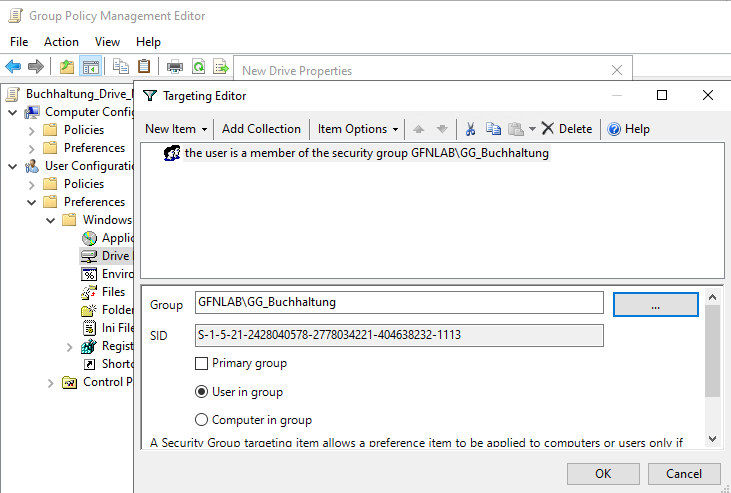
To make sure that the drive mapping applies only to Buchhaltung users, I configured Item-Level Targeting.
In the mapped drive properties, I opened the Common tab and enabled:
Item-level targetingThen I opened the Targeting Editor and added a Security Group condition.
Target security group:
GG_BuchhaltungThe logic is:
User is a member of GG_Buchhaltung → B: drive mapping is applied
User is not a member of GG_Buchhaltung → B: drive mapping is not applied
This allows the drive mapping to be controlled by Active Directory group membership.
12. Testing on the Windows 11 Client
After completing the GPO configuration, I tested the result on the Windows 11 client with the Frieda Fleissig user.
First, I refreshed Group Policy manually:
gpupdate /forceThen I signed out and signed back in with the same user.
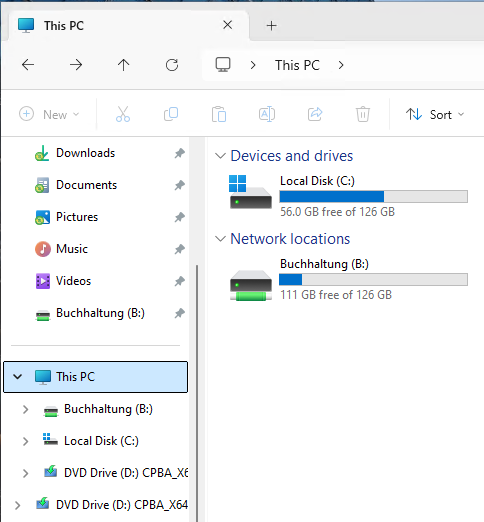
After logging in again, I opened File Explorer and checked This PC.
The expected result was:
B: → \\DC\Shares\BuchhaltungThe Buchhaltung network drive was successfully mapped as the B: drive.
13. Verifying the Applied GPO with gpresult
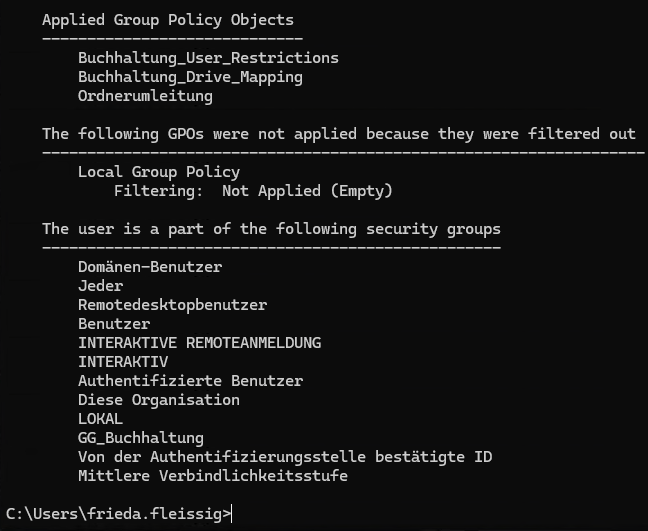
Finally, I verified that the GPO was applied to the user by using gpresult.
On the Windows 11 client, I ran:
gpresult /rIn the User Settings section, the following GPO should appear under the applied Group Policy Objects:
Buchhaltung_Drive_MappingThis confirms that the drive mapping GPO was successfully applied to the Frieda Fleissig user.
14. Conclusion
In this part, I configured department-based network drive mapping by using Group Policy Preferences.
For the Buchhaltung department, the final configuration was:
Security Group: GG_Buchhaltung
Shared Folder: \\DC\Shares\Buchhaltung
Drive Letter: B:
GPO: Buchhaltung_Drive_Mapping
Target OU: GFNLAB.Test → Buchhaltung → Benutzer
With this setup, the Frieda Fleissig user automatically received the Buchhaltung network drive after signing in to the Windows 11 client.
The main components used in this lab were:
Shared Folder
Share Permissions
NTFS Permissions
Security Group
Group Policy Preferences
Drive Maps
Item-Level Targeting
gpupdate
gpresult
This method can be expanded for other departments such as Verkauf, Lager, or GF by creating separate department folders, security groups, and drive mapping settings.
In this part, I focused only on network drive mapping. Folder Redirection and more advanced user data management topics can be covered in a later part.