Sharing notes from my ongoing learning journey — what I build, break and understand along the way.
Opening Suspicious Files and Links with Windows Sandbox – Local Setup Guide

How to Open Suspicious Files and Links Safely with Windows Sandbox
On Windows, we occasionally come across files, folders, or links that we are not completely sure about. This happens even more often when working in IT: a ZIP file, an unknown installer, a script we want to test, or a suspicious link that we do not want to open directly in the browser.
For this need, I developed a small tool: Sandbox Quick Open.
The goal is simple:
Instead of opening a file, folder, or link directly on my main Windows system, I want to open it quickly inside Windows Sandbox.
In this first post, I will explain the local installation and usage part of the project. In the second post, I will explain how the same structure can be deployed in a domain environment using Edge + GPO + Native Messaging Host.
Why did I make this tool?
Windows Sandbox is already a very useful feature. It opens a disposable, isolated Windows environment. When the Sandbox is closed, the changes made inside it are deleted as well.
But in daily use, there is a small problem:
Opening Windows Sandbox manually, moving the file into it, and copying and opening a link is a bit inconvenient.
What I wanted was this:
I right-click a file and choose Open in Windows Sandbox.
I right-click a folder and it opens inside Sandbox.
I can open a link from the browser inside Sandbox.
I can open the URL in the clipboard inside Sandbox with a shortcut or hotkey.
The installation should be as simple as possible.
That is why I prepared the project using PowerShell scripts, Windows context menu entries, and a small Chromium extension.
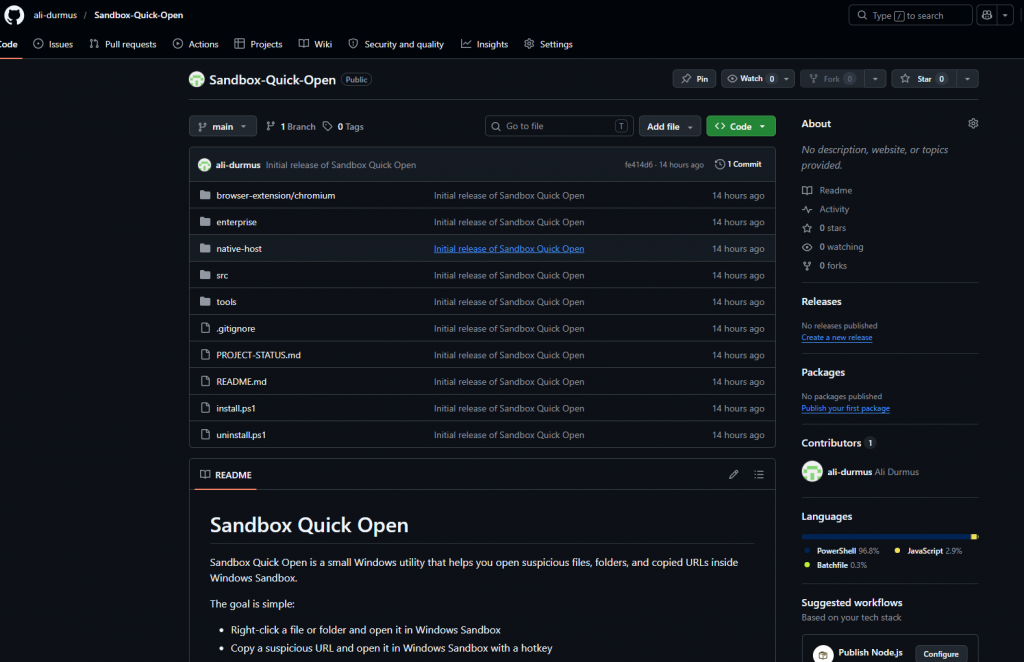
Project address
I uploaded the project to GitHub:
https://github.com/ali-durmus/Sandbox-Quick-Open
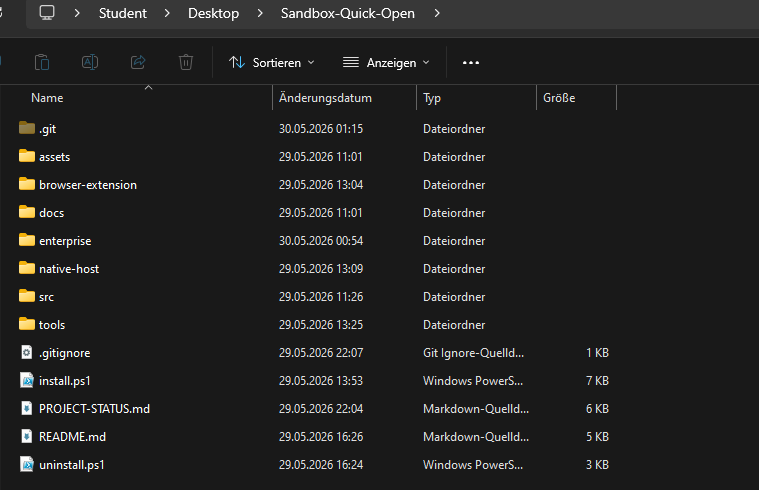
The main files we need for local usage are:
install.ps1
uninstall.ps1
src/
native-host/
browser-extension/chromium/
The Enterprise/GPO part is also included in the repository, but in this post I will focus only on the local usage part.
Requirements
Since this tool uses Windows Sandbox, the Windows Sandbox feature must first be enabled on the system.
General requirements:
Windows 10/11 Pro, Enterprise, or Education
Virtualization support must be enabled
Windows Sandbox must be enabled
PowerShell
Chrome or a Chromium-based browser
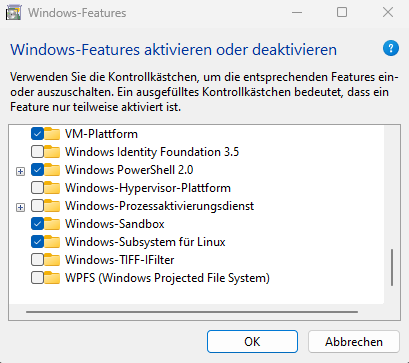
If Windows Sandbox is not enabled, it can be turned on from Windows Features:
Turn Windows features on or off > Windows SandboxOr it can be enabled via PowerShell:
Enable-WindowsOptionalFeature -Online -FeatureName Containers-DisposableClientVM -AllA restart may be required after this process.
Installation
First, we download the project from GitHub.
If Git is installed:
git clone https://github.com/ali-durmus/Sandbox-Quick-Open.git
cd Sandbox-Quick-Open
Those who do not want to use Git can also download it from the GitHub page by selecting:
Code > Download ZIPThen we open PowerShell inside the project folder and run the following command:
Set-ExecutionPolicy -Scope Process -ExecutionPolicy Bypass
.\install.ps1
This installation script copies the required files for the local user to the following location:
%LOCALAPPDATA%\Sandbox Quick OpenIt also adds the following option to the Windows right-click menu for files and folders:
Open in Windows SandboxIn addition, it creates the following shortcut on the desktop and in the Start Menu:
Open Clipboard URL in Windows SandboxThe hotkey for this shortcut is set as:
Ctrl + Alt + S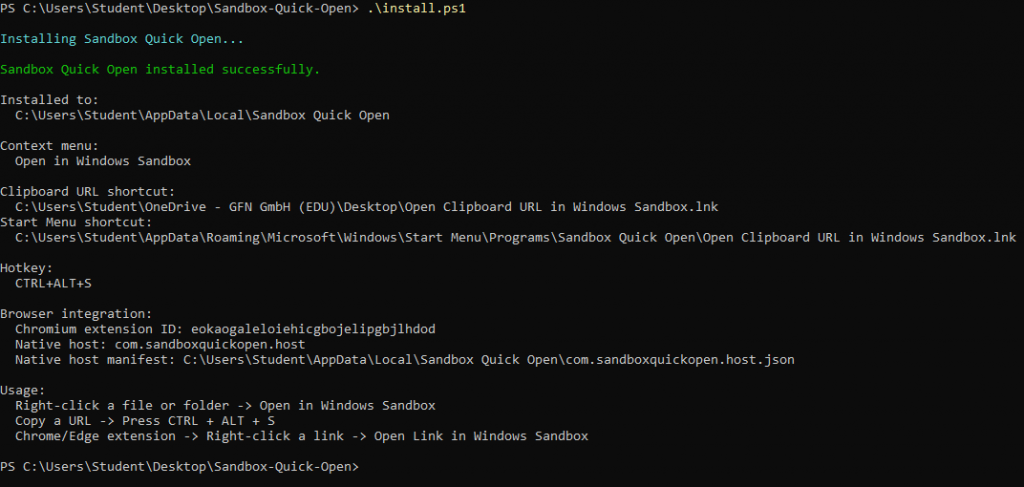
Opening a file or folder inside Sandbox
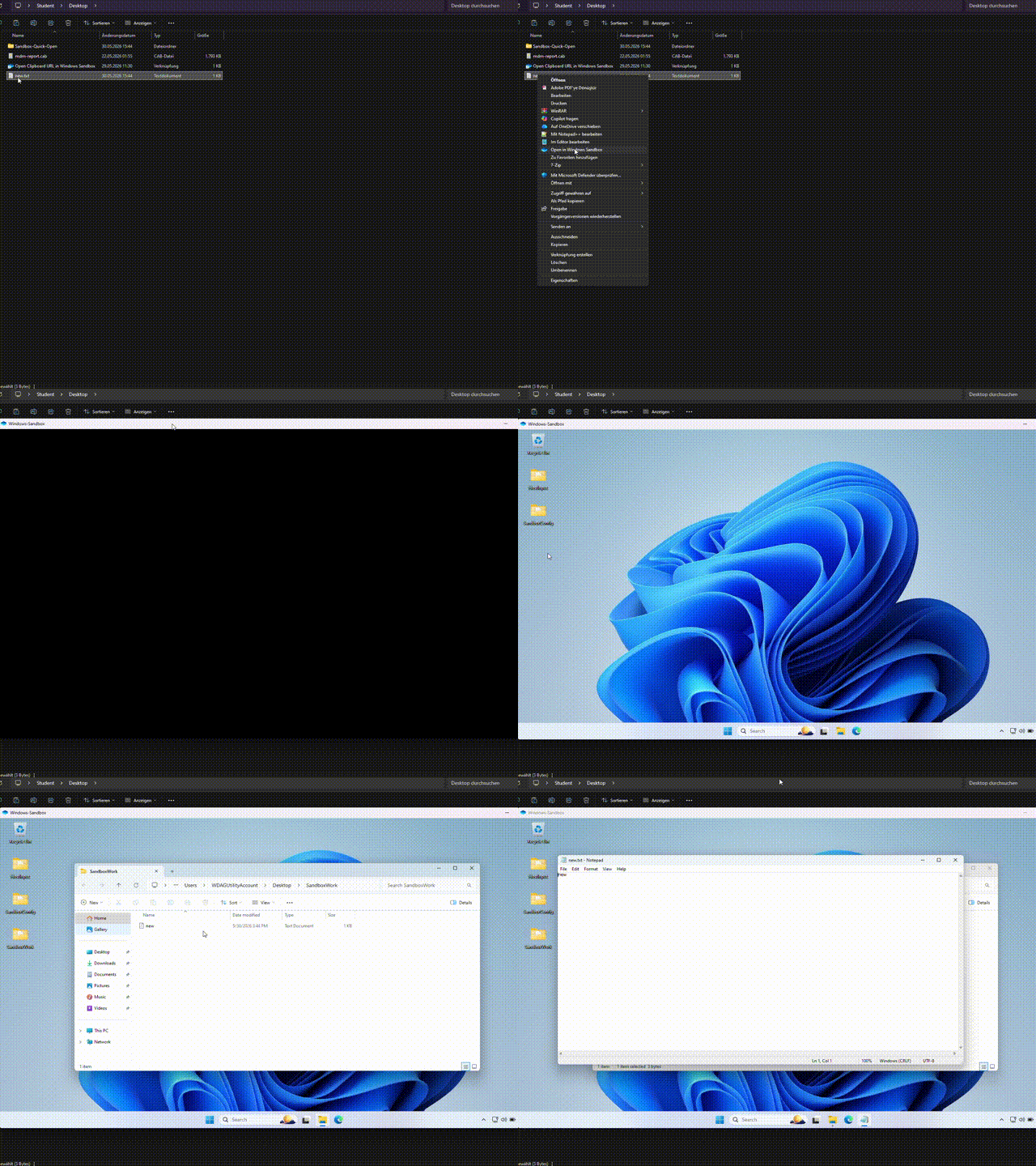
After installation, when we right-click any file, a new option appears:
Open in Windows SandboxWhen we click this option, the tool does the following:
The selected file or folder is copied to a temporary working folder.
A .wsb Windows Sandbox configuration file is automatically created.
Windows Sandbox opens.
The file or folder is copied into the SandboxWork folder under the Desktop inside Sandbox.
Explorer automatically opens this folder.
So before running the file on the main system, we get a chance to inspect it in an isolated environment.
Opening the URL in the clipboard inside Sandbox
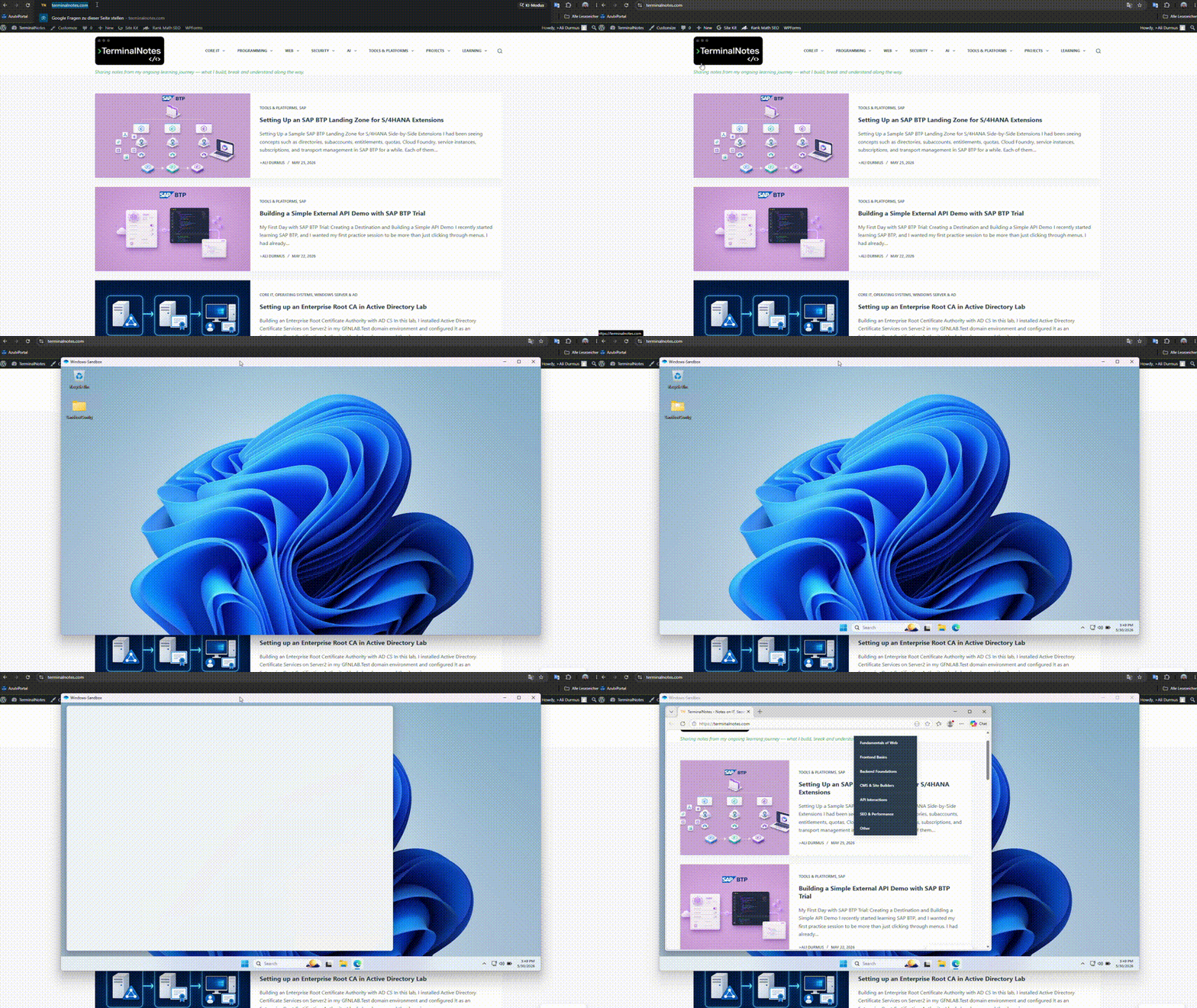
Sometimes we need to test a link instead of a file. For example, a URL received in an email, a download link, or a web address we do not trust.
The usage for this is very simple:
We copy the URL.
We run the following shortcut on the desktop:
Open Clipboard URL in Windows Sandboxor we use the hotkey:
Ctrl + Alt + SThe tool checks the text in the clipboard. If it is a valid http or https URL, Windows Sandbox opens and the link is opened with Edge inside Sandbox.
If it is not a valid URL, no action is taken.
Opening links from the right-click menu with the Chrome extension
There is also a small Chromium extension for local usage. Thanks to this extension, we can right-click a link in the browser and open it inside Sandbox.
The extension folder is located here:
browser-extension/chromiumTo install it in Chrome:
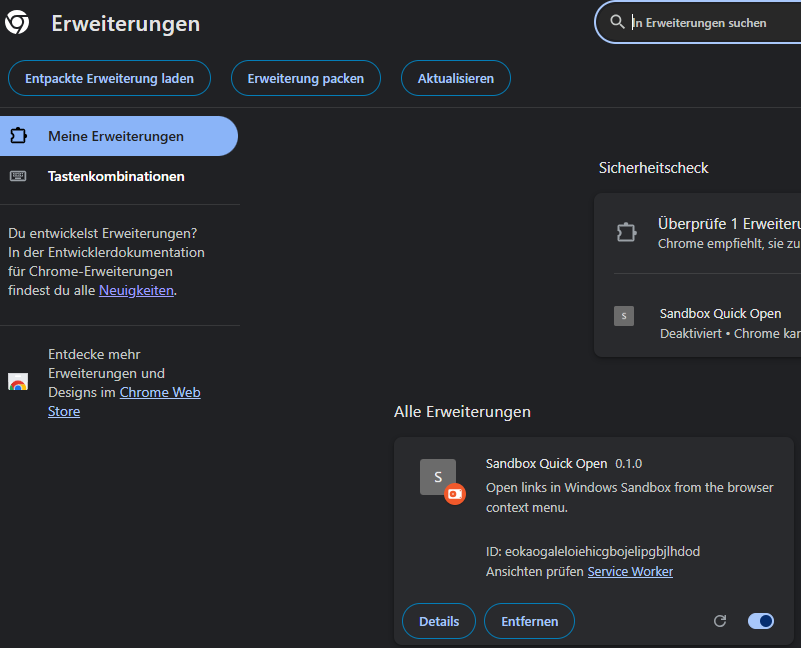
Open the following page in Chrome:
chrome://extensionsEnable Developer mode from the top right.
Click the Load unpacked button.
Select the following folder inside the project:
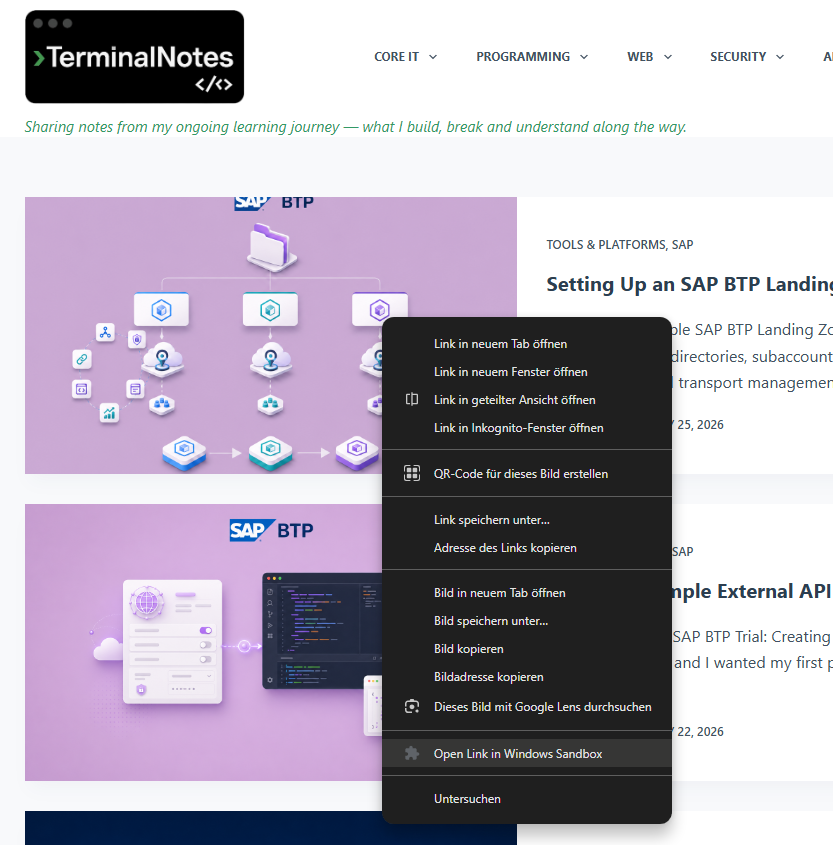
browser-extension/chromiumAfter this, when we right-click a link on a web page, the following option appears:
Open Link in Windows SandboxThis option sends a message to the local PowerShell host through Native Messaging, and the URL is opened inside Windows Sandbox.
What is technically happening in the background?
In the local setup, the main logic consists of three parts.
The first part is the PowerShell scripts:
Open-InSandbox.ps1
Open-Url-InSandbox.ps1
Open-ClipboardUrl-InSandbox.ps1
These handle the file, folder, and URL opening operations.
The second part is the Windows context menu integration. install.ps1 creates right-click menu entries for files and folders under the registry.
The third part is the browser integration. The Chrome extension does not run PowerShell directly. Instead, it uses the Native Messaging mechanism supported by Chromium. The extension sends the link information to the native host, and the native host opens the URL inside Sandbox.
This creates a controlled bridge between the browser extension and the local system.
Uninstallation
To remove the tool, the following command can be run inside the project folder:
Set-ExecutionPolicy -Scope Process -ExecutionPolicy Bypass
.\uninstall.ps1
This script cleans up the following:
Right-click menu entries
Native messaging registry entries
Desktop shortcut
Start Menu shortcut
The %LOCALAPPDATA%\Sandbox Quick Open folder
It does not disable the Windows Sandbox feature, because Sandbox may also be used for other tasks.
Small notes
This project is not an antivirus replacement. But it provides a practical intermediate layer for inspecting suspicious files and links in an isolated environment before opening them directly on my own system.
The points I find especially useful are:
Opening files and folders from the right-click menu
Sending the URL in the clipboard to Sandbox with a single shortcut
Opening browser links inside Sandbox from the right-click menu
Installation with a single script
Everything being open source and inspectable
In this post, I explained the local usage side. In the second part, I will cover how the same project can be deployed in a domain environment: Edge extension packaging, CRX, updates.xml, native host manifest, and force installation with GPO.