Sharing notes from my ongoing learning journey — what I build, break and understand along the way.
Why Kali Linux? Building a Safe Cybersecurity Lab in VirtualBox (Oracle VM)

Kali Linux on VirtualBox: Key Advantages, Features, and a Practical Workflow
When the name Kali Linux comes up, a large part of the internet quickly steers the topic toward “hacking.” But what truly makes Kali valuable isn’t individual tools or “cool-looking” terminal output—it’s the fact that it provides a systematic, repeatable, and documentable working environment designed for cybersecurity work.
In this article, I’ll cover Kali in the context of a virtual machine scenario running on Oracle VirtualBox. My goal is not “open this tool, type this command,” but to explain—technically yet clearly—why Kali is preferred, what makes it stand out, and how it fits into security work. Throughout the article, I’ll also support it with screenshots and short videos (from my own VM environment).
Ethical & legal note (important): This content is intended only for security testing, education, lab, and CTF purposes on your own systems or in environments where you have explicit written permission. Unauthorized access attempts are unethical and can lead to legal consequences. Kali Linux is not for “malicious use”; it’s a toolkit used to strengthen defenses and measure security.
What’s in this article?
- What is Kali Linux, and what is it designed for?
- Why does it make sense to use it in a virtual machine (VirtualBox)?
- The features that make Kali different and the “Kali philosophy”
- Kali’s role in areas like pentesting / blue team / forensics
- My working routine (workflow): notes, evidence, reporting approach
- Performance, snapshots, organization, and common mistakes
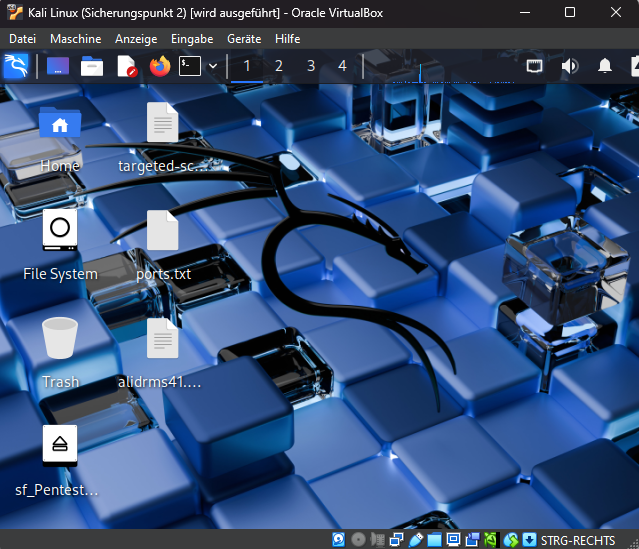
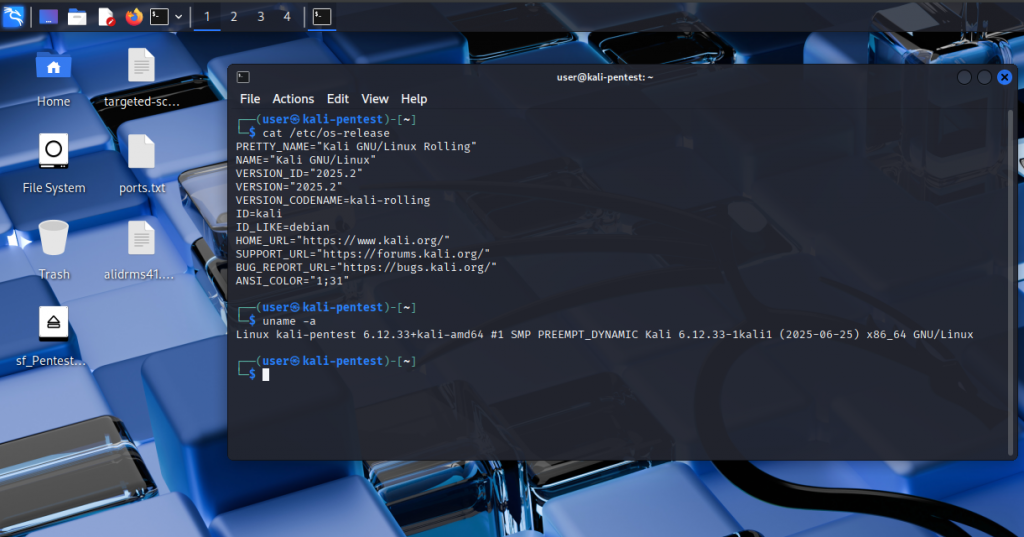
What is Kali Linux? Not a “general-purpose Linux,” but a security-focused workshop
Kali Linux is a Debian-based Linux distribution. But unlike Ubuntu, Mint, or Fedora—built primarily for “general use”—Kali comes with an ecosystem prepared specifically for cybersecurity work. It helps to think about this in three main areas:
- Tool ecosystem: Tools for recon, vulnerability analysis, web application security, network inspection, digital forensics, reverse engineering, and many more domains.
- Categorization and organization: Tools are classified by domain in menus; packaging approach and defaults that make lab usage easier.
- Workflow support: An environment that naturally fits the security testing cycle: “log in → test → collect evidence → report → roll back/iterate.”
I position Kali most accurately like this:
Kali is not “Linux for everything every day”; it’s the cybersecurity practitioner’s toolkit and workshop.
That’s why Kali produces value when you approach it as “I’ll apply security methodology in my lab environment,” rather than “I’ll install this and use it as my daily OS.”
So who is it meaningful for?
- Technical people entering cybersecurity: If you already have network/web fundamentals, Kali is an excellent standardized toolbox for lab-based progress.
- Pentest / red team professionals: It supports project-based work, output archiving, and reporting discipline.
- Blue team / SOC learners: Useful for traffic analysis, triage, and incident response learning as well.
- Forensics enthusiasts: When used with proper methodology, access to analysis tools becomes easier.
On the other hand, if you’re thinking “I’m new to Linux, I just want a comfortable desktop,” distros like Ubuntu/Mint usually get you moving with less friction. In that sense, Kali is more “job-focused” and sometimes more demanding.
Why do I use Kali in a virtual machine (VirtualBox)?
The reason to install Kali in a VM isn’t only “it’s easy to set up.” The real reason is: control and risk management. Security work is inherently trial-and-error: you change settings, add packages, sometimes break things. A VM gives you a space to do that without fear.
1) Isolation: Protecting the host operating system
A virtual machine separates Kali from your main system. This isolation:
- Reduces the risk of breaking your host OS during experimental setups,
- Keeps your working environment “cleaner,”
- Makes lab design more controlled.
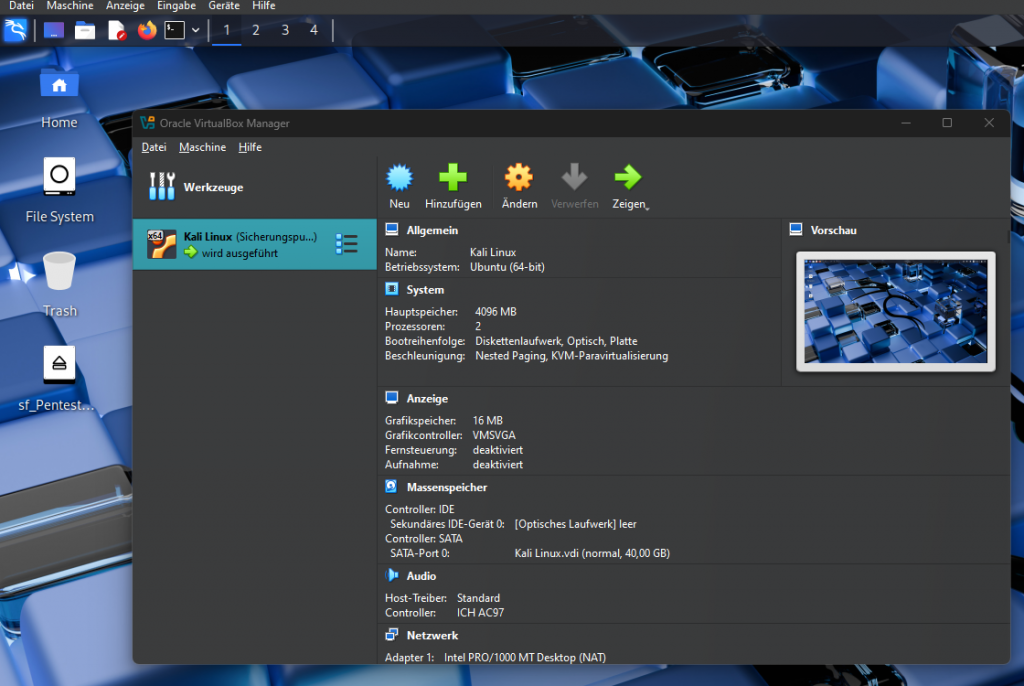
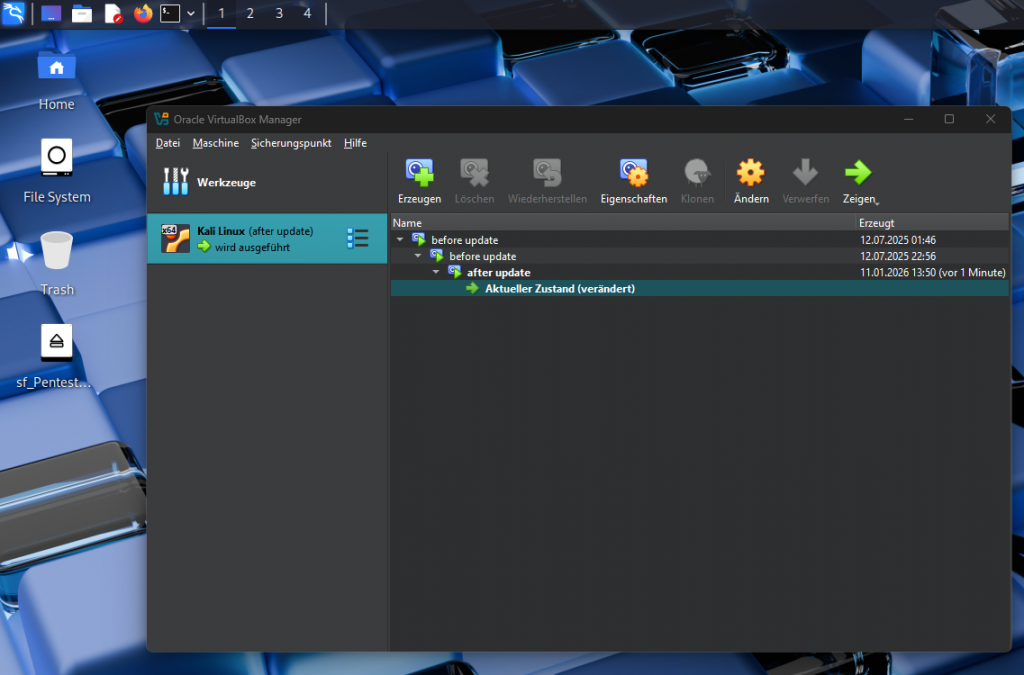
2) Snapshot: The “undo button”
The strongest feature of VMs is the snapshot. Especially in a tool-heavy and frequently updated environment like Kali, snapshot discipline is worth gold.
My snapshot logic looks like this:
- Snapshot before a major update,
- Snapshot before trying a new toolset/configuration,
- A clean “checkpoint” when finishing a lab session.
If something goes wrong, instead of hours of debugging, you return to the previous state in ~20 seconds.
3) Building a lab becomes easy: Kali + target VM(s) + isolated network
The healthiest way to learn cybersecurity is through a lab. With virtual machines, it’s easy to build this structure:
- Kali (attacker/test machine),
- Target VM(s) (intentionally vulnerable lab systems or test services you set up),
- An isolated network segment.
The critical point here: The goal isn’t “mess with your home network,” but to practice in a controlled, isolated, permission-based environment.
4) Portability and reproducibility
The VM approach makes your environment more portable. Backing up the VM disk, opening it on another machine, or rebuilding the same lab becomes easier. Also, since “my environment” stays consistent, cause-and-effect becomes clearer when you troubleshoot.
What really makes Kali… Kali? (More than a list of tools)
Most online Kali content just rattles off tool names. Even for technical readers, this often adds little—because in security, what matters most is methodology and mindset before “which tool.”
Here’s how I see what makes Kali different:
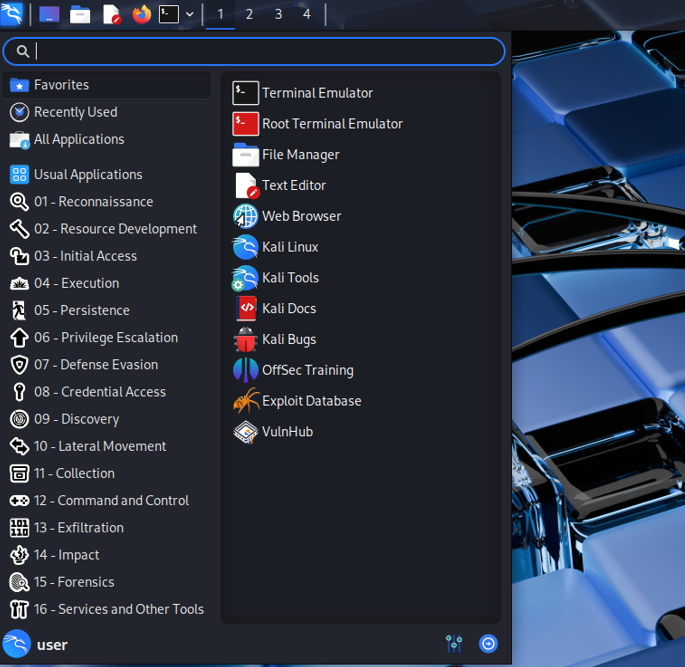
1) Categorized menu structure: Builds a mental model
Kali groups tools by “problem domain” in its menu. This is a big advantage especially for beginners with technical fundamentals: it guides you without forcing tool memorization.
Example categories (high-level):
- Information Gathering (recon)
- Vulnerability Analysis
- Web Application Analysis
- Network / Sniffing / Spoofing (traffic and network inspection)
- Forensics
- Reverse Engineering
- Reporting / wordlists and supporting pieces
This structure teaches you:
Problem type → category → method → tool
So the tool comes last. That’s a mature security approach.
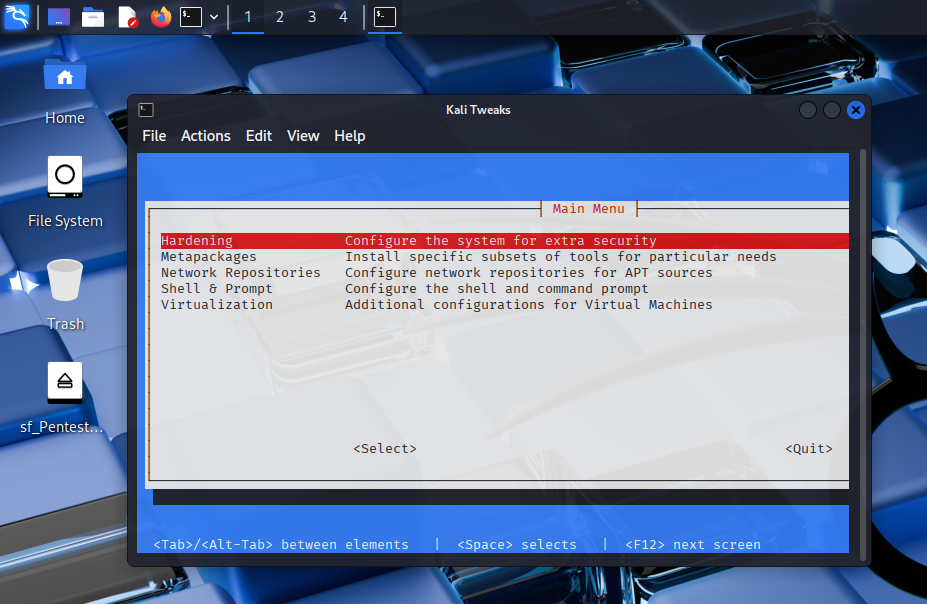
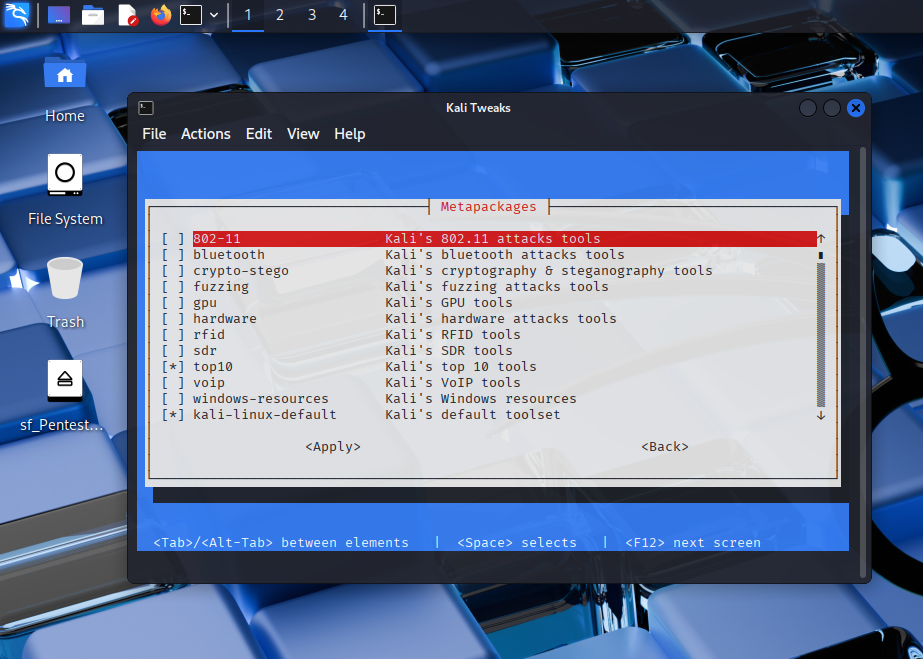
2) “Role-based” package approach
The Kali ecosystem supports grouping packages by specific use cases. This encourages “install what I need” instead of “install everything,” which is valuable for disk/performance management in a VM.
Two important points here:
- A minimal install is often healthier,
- Adding tools as needed makes both learning and maintenance easier.
3) Freshness: An advantage that also requires caution
Kali prioritizes keeping security tools up to date. That’s an advantage because security changes fast. But “being current” can sometimes challenge stability. That’s why a good Kali habit trio is essential:
- Snapshot,
- Backup,
- Planned updates.
When you build this discipline, freshness becomes an advantage; without it, it turns into “something broke” stress.
4) Default work feel: “work-focused minimalism”
Kali’s UX usually isn’t about flash—it’s about “getting the job done.” Terminal-centric work, project folder discipline, saving outputs—all are encouraged. Showing this side in a technical blog post helps move Kali away from “meme culture” and into a professional context.
The real answer to “Why Kali?”: What does it give you?
I want this section to be crystal clear. Choosing Kali gives you certain things almost “for free”:
1) A standard toolbox
When learning security, a major time sink is often installing tools. Kali ships many tools ready-to-go, reducing early friction. This means:
- Better alignment with lab/tutorial content,
- Fewer “it doesn’t work on my machine” issues,
- More time spent learning instead of setup.
2) Makes lab organization easier
Kali supports the lab approach—and the lab approach is the healthiest way to learn security because:
- You practice without touching real systems,
- Controlled repetition accelerates learning,
- Results can be documented properly.
3) Keeps you close to methodology
When you use Kali correctly, these habits naturally develop:
- Session planning,
- Notes/evidence organization,
- Output archiving,
- Reporting.
This is the foundation of being able to “do the job” professionally.
4) Opens doors to many domains: not just pentest—also forensics
Many people associate Kali only with pentesting. But if you look properly, it also helps you approach incident response, traffic analysis, and digital forensics. The key difference is methodology, not tools: in forensics, principles like “examine without altering evidence” are central.
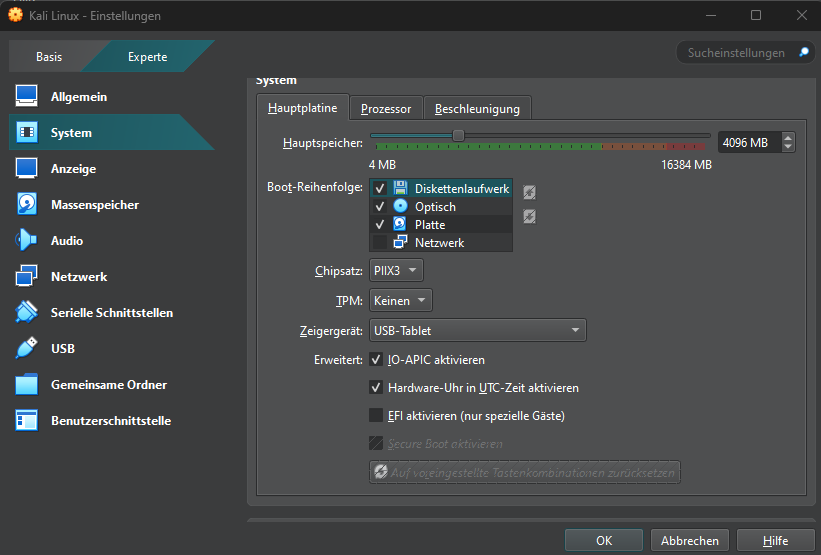
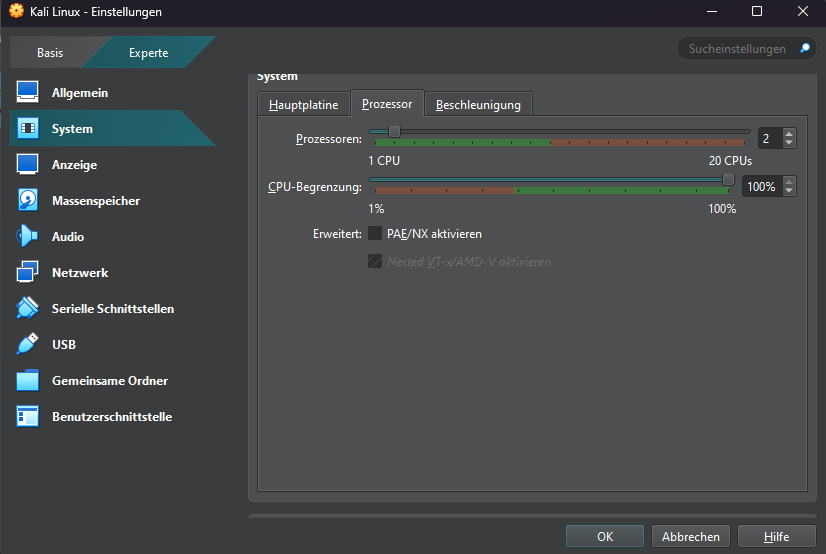
My VirtualBox + Kali setup approach
In this section, I explain the “clean lab” mindset without diving into attack-focused network details. Because quality technical content doesn’t just say “what I did,” but also “why I did it.”
My VM goals:
- Keep the Kali VM isolated from the host system,
- Use snapshots regularly,
- Standardize project folder structure,
- Run every session in a “documentable” way.
Kali’s advantages: what helps the most in practice
1) Fast start and a standard environment
Kali reduces “setup pain.” This matters early on because motivation often breaks at: dependency issues, package errors, incompatibilities. Kali often reduces that friction.
2) Compatibility with the training/lab ecosystem
Kali is a widely used “reference environment” in CTF and lab worlds. Many training materials assume Kali, meaning:
- Following content is easier,
- You progress with similar tool versions/menus,
- Community troubleshooting becomes more practical.
3) Ability to touch multiple disciplines
Web security, network analysis, forensics… Kali won’t make you an expert by itself, but it opens a “clean doorway” into many domains. The key is choosing a domain and going deep.
Kali’s disadvantages: it can annoy you if you use it in the wrong place
Quality content doesn’t only praise—it also warns correctly.
1) Not always the best choice as a daily driver
Daily use with Kali is possible, but for many people making Kali the main OS just because “it has security tools” is unnecessary. For daily use, priorities are usually:
- Stability,
- Driver compatibility,
- Office applications,
- A “smooth update” experience.
Kali tends to live more like a “work environment.”
2) Rolling release can sometimes surprise you
Updates can occasionally cause unexpected incompatibilities. That’s exactly where snapshots and backups matter. This is why I find using Kali in a VM safer.
3) Can create “purpose confusion” for beginners
Kali’s menu and tool volume can cause “where do I start?” stress. If you choose Kali, it helps to follow a learning roadmap (I’ll provide one below).
Kali vs Ubuntu/Mint/Parrot: a technical but short comparison
| Criteria | Kali Linux | Ubuntu/Mint | Parrot OS |
|---|---|---|---|
| Primary goal | Security testing, lab | Daily use | Mix of security + general use |
| Default toolset | Extensive | Limited | Medium |
| Learning curve | Steeper | Easier | Medium |
| Stability expectation | Snapshots recommended | Generally stable | Variable |
| Who is it for? | Security-focused | General users | Those who want both worlds |
My approach: For most people, the smoothest balance is Kali for “work” and Ubuntu/Mint for “daily use.”
Performance and organization tips for Kali on VirtualBox
1) Resource management: before saying “Kali is slow”
If Kali feels slow, the cause is often not Kali but VM resources. In general:
- Setting RAM too low (especially with a browser + notes + VM open) can choke the system,
- Too few CPU cores makes processes crawl,
- Too little disk space causes update/install issues.
2) Snapshot strategy: prevent chaos
Randomly piling up snapshots is another problem. My approach:
- “Milestone” snapshots: major turning points
- “Pre-update” snapshots: before updates
- “Clean base” snapshot: a clean install I can always return to
Snapshot naming:
clean-base_2026-01-11pre-update_2026-01-20lab-session-03_checkpoint
Common mistakes (and what I think are the best fixes)
Mistake 1: Thinking Kali is “the solution to everything”
Kali is a powerful toolbox, but not the tool for every job. Often the best approach is:
- Ubuntu/Mint for daily use,
- Kali (VM) for a security lab.
Mistake 2: Making changes without taking a snapshot
Classic VM mistake. Simple fix:
Big change → snapshot.
Mistake 3: Learning tool-first
“I learned this tool” sounds like progress, but lasting success lies in methodology. Ask yourself:
- “What problem does this tool solve?”
- “How do I interpret this output?”
- “How do I write this finding into a report?”
Mistake 4: Not taking notes
Half of security work is documentation. Not taking notes slows learning. Simple fix: at the start of every session, open a notes/session-xx.md file.
Mistake 5: Leaving ethics/legal boundaries vague
Always be explicit in your content:
- permission-based lab,
- CTF,
- education,
- no touching unauthorized systems.
This builds both professionalism and trust.
Learning roadmap: What should you learn with Kali, and in what order?
Installing Kali alone doesn’t solve anything. A learning roadmap is essential. For a technical audience, I recommend:
1) Linux fundamentals
- filesystem logic,
- permissions,
- service concepts,
- logging basics.
2) Networking fundamentals
- IP, DNS, TCP/UDP,
- ports and services relationship,
- HTTP/HTTPS basics.
3) Web security fundamentals
- OWASP concepts (conceptual),
- input validation, auth, session,
- basic risk modeling.
4) Practice with labs/CTFs
- controlled environment,
- repeatable scenarios,
- small targets.
5) Reporting and communication
- turning findings into writing,
- explaining impact,
- developing recommendations.
When you follow this order, Kali stops being a “tool paradise” and becomes a real working environment.
Mini checklist (before a session)
- Is my lab environment isolated?
- Did I take a snapshot?
- Is my project folder ready?
- Is my notes file open?
- Do I have a clear naming standard for screenshots/videos?
Conclusion: Why I choose Kali, and what I think is the right approach
Kali Linux is not a “magic key that opens every door.” But in the cybersecurity world, used in the right place, it’s a powerful standard working environment. For me, Kali’s greatest value is this trio:
- A safe and controlled lab with VirtualBox + snapshots,
- A categorized tool ecosystem aligned with security work,
- Workflow discipline that supports notes, evidence, and reporting.
If you’re looking at cybersecurity from a technical angle, building labs, and trying to develop a “professional working routine,” I think using Kali in a virtual machine is one of the most sensible starting points.